Why Are My AirPods Not Connecting
There are few things more frustrating in the modern world than reaching for your AirPods, popping them in your ears, and hearing... nothing. You check your iPhone, swipe into the Control Center, and see that dreaded "Not Connected" status.
You are not alone. "Why are my AirPods not connecting?" is one of the most common questions in the Apple ecosystem. Whether you own the original AirPods, the Pro models, or the Max, connection hiccups are an unfortunate reality of wireless technology.
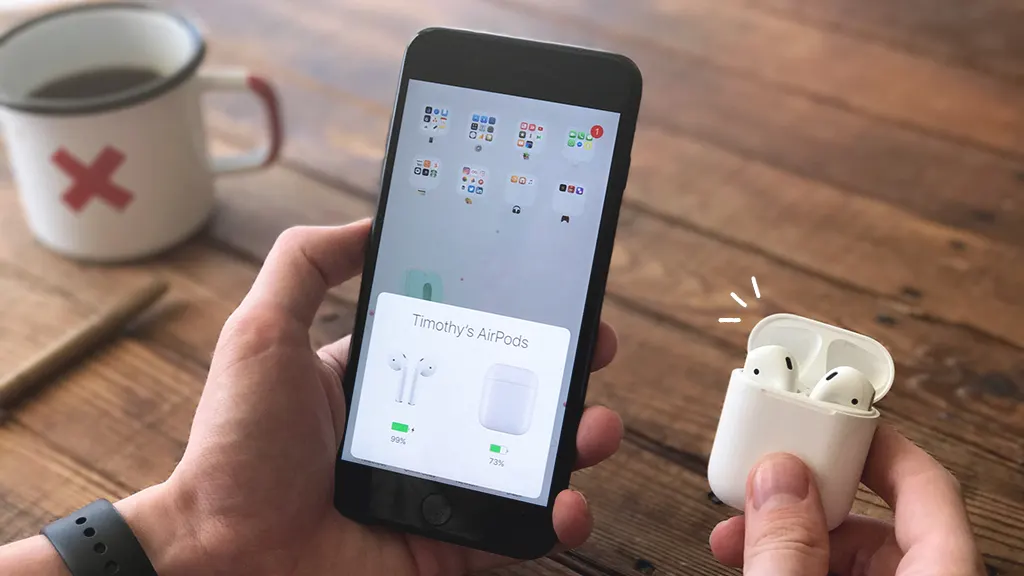
The good news? In the vast majority of cases, the issue is not a sign of permanent hardware failure. It is usually a minor software glitch, a Bluetooth conflict, or a simple settings oversight.
In this guide, we will walk you through why your AirPods aren't connecting and provide a step-by-step roadmap to get them working again.
Part 1: The Quick Fixes (Try These First)
Before we dive into the complexities of Bluetooth drivers and network settings, let’s start with the low-hanging fruit. These solutions solve about 80% of connection issues.
- The Case and Battery Check
It sounds simple, but a dead battery is the most common culprit.
Check the Case: Place your AirPods in the case, close the lid, and open it next to your iPhone. Do you see the battery charge pop up? If not, your case is likely dead.
Check the Pods: If one AirPod is dead and the other has charge, the stereo connection may fail, causing neither to play. Place both back in the case to charge for at least 15 minutes.
- Toggle Bluetooth Off and On
This is the oldest trick in the tech book because it works. It forces your phone to flush the Bluetooth cache and re-establish handshakes with nearby devices.
How to do it: Open Settings > Bluetooth and toggle Bluetooth off. Wait 10 seconds, then toggle it back on. Try reconnecting your AirPods.
- Airplane Mode
Putting your iPhone in Airplane Mode cuts all wireless signals (Cellular, Wi-Fi, Bluetooth). When you turn it off, the system resets all these antennas.
How to do it: Swipe into the Control Center, tap the Airplane icon to turn it on, wait 10 seconds, and tap it again to turn it off. Then, try to connect.
Part 2: The "Cleanliness" Fix
If the quick fixes didn't work, it might be a hardware issue. AirPods are tiny computers that sit inside your ears. Earwax and debris are their natural enemies.
- Dirty Charging Contacts
If your AirPods aren't connecting because they won't charge, the problem is often the metal rings on the bottom of the stems.
The Fix: Take a soft, dry, lint-free cloth (a microfiber cloth is best). Gently rub the metal contacts on the AirPods and the inside of the charging case where the prongs sit. If the debris is stubborn, you can slightly dampen the cloth with water—do not use rubbing alcohol or sharp objects.
- Blocked Sensors
AirPods use optical sensors and skin-detect sensors to know when they are in your ears. If these sensors are covered in grime, your AirPods might think they are still in the case when they are in your ears, or vice versa.
The Fix: Gently clean the black mesh and sensor areas with a dry Q-tip or a soft-bristled toothbrush. Do not poke the mesh too hard, as it can tear.
Part 3: The "Power Cycle" (The Reset)
If cleaning and toggling don't work, your AirPods might have a software conflict internally. Just like your phone needs a restart sometimes, so do your AirPods. This is known as the "hard reset."
How to factory reset your AirPods:
Place your AirPods in their charging case and close the lid.
Wait 30 seconds.
Open the lid.
On the back of the case, locate the small, circular setup button.
Press and hold the setup button for about 15 seconds. You will see the status light flash amber, then flash white.
Close the lid again.
Open the lid near your iPhone. You should see the standard "Connect" animation appear as if they were brand new.
Part 4: iPhone-Specific Fixes
Sometimes, the problem isn't the AirPods—it's the iPhone they are trying to talk to.
- Forget This Device
If your AirPods are stuck in a connection loop, you need to erase their "memory" from your phone.
How to do it: Go to Settings > Bluetooth. Find your AirPods in the list and tap the blue "i" icon next to them. Tap Forget This Device.
Reconnect: Now, put the AirPods in the case, open the lid, and hold the button on the back until the light flashes white. Re-pair them as if they were new.
- Check Automatic Ear Detection
If your AirPods connect but audio doesn't play when you put them in, Automatic Ear Detection might be glitching.
How to do it: Go to Settings > Bluetooth, tap the "i" next to your AirPods, and toggle Automatic Ear Detection off. Now, audio should play regardless of whether the sensors think they are in your ears. (If this works, the sensors are likely dirty).
- Update Your iPhone
AirPods rely on firmware updates pushed through your iPhone. If your iPhone is out of date, it can cause compatibility issues. Go to Settings > General > Software Update to ensure you are running the latest iOS.
Part 5: Mac and Other Device Issues
Connecting to a non-iPhone device (like a MacBook) comes with its own set of headaches.
Bluetooth on Mac
If your AirPods won't connect to your Mac:
Check Bluetooth Status: Ensure Bluetooth is on in your Mac's Control Center.
Remove and Re-add: Go to System Settings (or Preferences) > Bluetooth. Hover over your AirPods, click the "X" or the three dots, and select Disconnect or Remove. Then, put the AirPods in pairing mode (white light) and reconnect.
The "Wrong Device" Problem
AirPods auto-switch between devices using your iCloud account. Sometimes, they get "stuck" thinking they are connected to an iPad across the house.
The Fix: On your iPhone, swipe down to open Control Center. Tap the AirPlay icon (the circle with triangles) in the music module. Manually select your AirPods. This forces them to switch away from the other device.
Part 6: When to Call Apple
If you have tried every step above—cleaning, resetting, forgetting, and updating—and your AirPods still refuse to connect, you may be facing a hardware issue.
Signs of hardware failure:
One AirPod never connects or makes sound.
The status light never turns on, even when the case is plugged into power.
The AirPods disconnect immediately when you move your head or put your phone in your pocket (sign of a battery failure).
If this is the case, it is time to contact Apple Support or visit an Apple Store. Battery service for AirPods is often affordable, and they can run a diagnostic test to see if the Bluetooth antenna has failed.
Summary Checklist
Here is a quick checklist to run through the next time you ask, "Why are my AirPods not connecting?"
Charge them: Place them in the case for 15 minutes.
Clean them: Check the contacts and sensors for wax.
Toggle Bluetooth: Turn it off and on in Settings.
Reconnect: Forget the device in Bluetooth settings and pair them fresh.
Reset: Hold the button on the back for 15 seconds until the light flashes amber/white.
Check the Source: Make sure your iPhone volume is up and the audio is playing.