Common Image to 3D Mistakes and How to Avoid Them
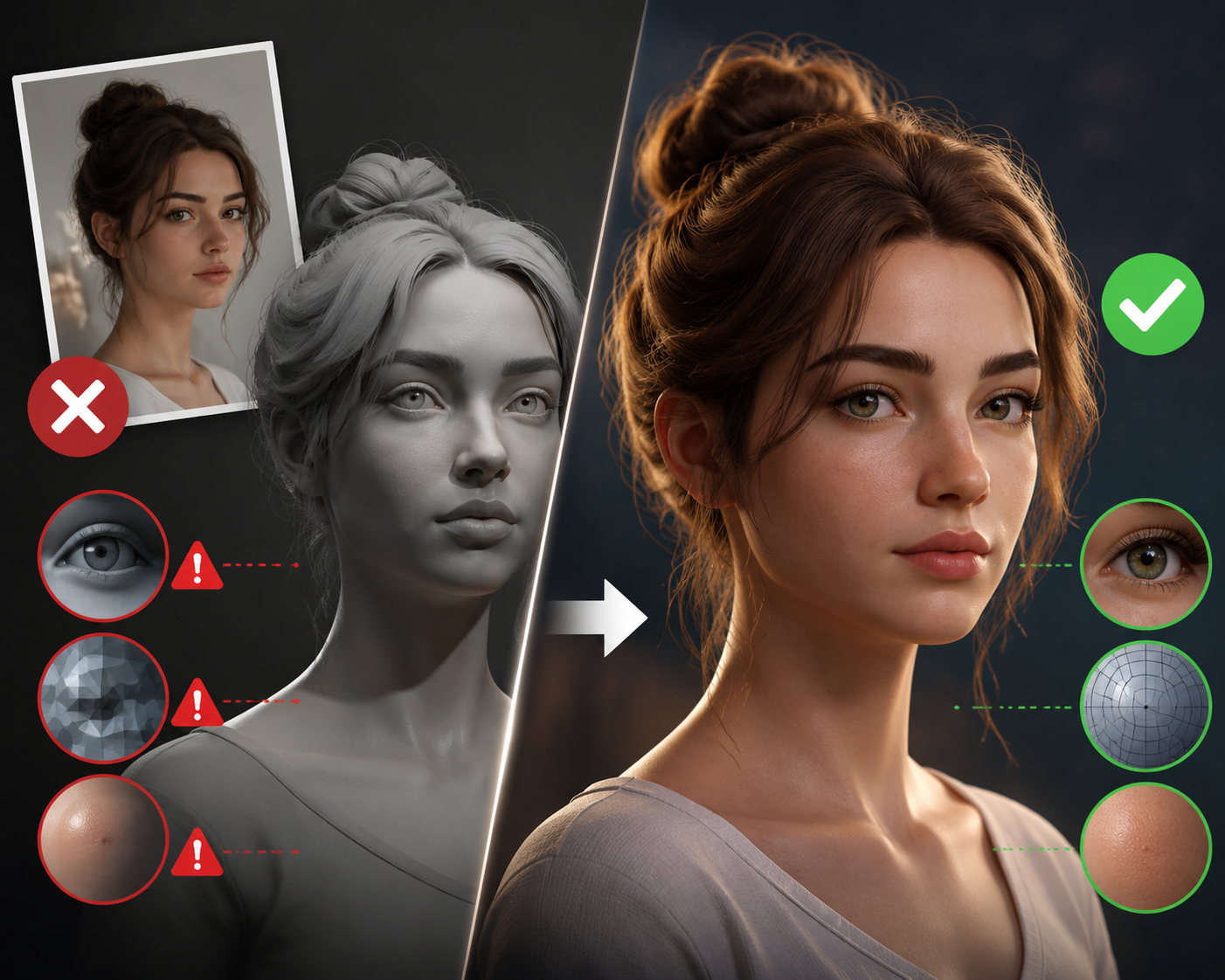
The rise of Image to 3D AI has made 3D model creation faster and more accessible than ever. With a single image, users can generate characters, products, props, and printable models in just a few minutes.
However, many people are disappointed with their first results.
The problem usually isn't the AI itself—it's the input, workflow, or expectations.
If you've ever generated a distorted mesh, missing geometry, blurry textures, or a model that looks nothing like the original image, you're not alone.
In this guide, we'll examine the most common mistakes people make when using Image to 3D Model AI tools and explain exactly how to avoid them.
Mistake #1: Using Low-Quality Images
Many beginners upload screenshots, compressed social media images, or blurry photos and expect professional results.
Unfortunately, AI can only work with the information it receives.
If important details are missing from the image, the generated model will likely contain inaccuracies.
Why It Causes Problems
Low-resolution images make it difficult for AI to identify:
- Object boundaries
- Surface details
- Shape information
- Texture patterns
How to Avoid It
Whenever possible, use:- Original image files
- High-resolution photos
- Sharp, focused images
- Well-lit subjects
Mistake #2: Choosing Images with Busy Backgrounds
AI performs best when it can clearly identify the subject.A cluttered background introduces unnecessary information and often confuses the reconstruction process.
Common Examples
- Objects on crowded desks
- Outdoor scenes with multiple subjects
- Complex room interiors
- Social media photos with distractions
Better Alternative
Use images with:- Plain backgrounds
- Strong subject separation
- Clear object visibility
Mistake #3: Expecting Perfect Results from One Image
This is perhaps the most common misconception.Many users assume AI can perfectly reconstruct an object from a single front-facing photo.
In reality, the AI must estimate everything it cannot see.
What AI Cannot Know
- Back-side details
- Internal structures
- Hidden surfaces
- Obscured components
How to Improve Accuracy
If your platform supports multiple images, provide:- Front view
- Side view
- Rear view
- Angled perspectives
Mistake #4: Ignoring Lighting Conditions
Lighting dramatically affects how AI interprets shape and depth.Poor lighting often creates reconstruction errors.
Problematic Lighting
- Heavy shadows
- Overexposed highlights
- Uneven lighting
- Colored lighting effects
Ideal Lighting
- Soft, even illumination
- Neutral colors
- Consistent brightness
- Minimal shadows
Mistake #5: Using Difficult Subjects
Not every object is equally suitable for AI reconstruction.Some subjects remain challenging even for advanced systems.
Commonly Difficult Objects
- Transparent glass
- Mirrors
- Reflective metal
- Thin wires
- Complex jewelry
- Long hair
Easier Subjects
- Furniture
- Toys
- Product packaging
- Statues
- Electronics
- Tools
Mistake #6: Skipping Model Inspection
Many users generate a model and immediately export it without checking the output carefully.This often leads to problems later.
Areas to Check
- Missing geometry
- Surface holes
- Distorted proportions
- Texture stretching
- Floating artifacts
Mistake #7: Exporting the Wrong File Format
Different projects require different formats.Choosing the wrong one can create compatibility issues.
Common Formats
GLB / GLTF
Best for:
- Web viewers
- AR experiences
- Real-time applications
Best for:
- Game development
- Animation workflows
Best for:
- General 3D editing
Best for:
- 3D printing
Mistake #8: Ignoring Mesh Optimization
AI-generated models are not always optimized automatically.Some contain:
- Excessive polygons
- Unnecessary geometry
- Internal faces
- Topology issues
Why Optimization Matters
Poorly optimized models can:- Load slowly
- Reduce game performance
- Cause printing failures
- Increase file size
Mistake #9: Expecting AI to Replace All Manual Work
AI is incredibly powerful, but it isn't magic.Many users expect a fully finished production asset immediately after generation.
Professional creators typically treat AI output as a starting point rather than a final product.
Common Workflow
- Generate model with AI
- Review geometry
- Refine topology
- Adjust textures
- Export final asset
Mistake #10: Using the First Result Without Experimenting
Image-to-3D generation is often iterative.Small changes to the input image can significantly affect the outcome.
Try Variations Such As
- Different backgrounds
- Alternative lighting
- Higher resolution images
- Different image angles
- Multiple AI generations
A Simple Checklist Before Generating a Model
Before uploading an image, ask yourself:✓ Is the image high resolution?
✓ Is the subject clearly visible?
✓ Is the background clean?
✓ Is the lighting even?
✓ Can I provide additional angles?
✓ Am I using the correct export format?
✓ Have I reviewed the generated model carefully?
Following this checklist helps avoid the majority of common issues.
Conclusion: Better Inputs Lead to Better 3D Models
Most problems people encounter with Image to 3D AI are not caused by the technology itself but by avoidable mistakes during the generation process. By using higher-quality images, providing better visual references, choosing appropriate subjects, and reviewing outputs carefully, you can dramatically improve your results.
As Image to 3D Model AI continues to evolve, the quality of generated assets will keep improving. Until then, understanding these common mistakes—and knowing how to avoid them—is one of the fastest ways to create cleaner, more accurate, and more professional-looking 3D models.
I can totally relate to the frustration of getting subpar results from Image to 3D tools due to low-quality input images. Have you experimented with pre-processing your images before uploading to enhance the model generation? 📸💻