Steemit Challenge Application for Season 29: Functional Applications, WhatsApp Clone and Shared Preferences in Flutter
Greetings Dear Steemit Team!
I am Muhammad Faisal with the Steemit username @mohammadfaisal. I joined Steemit platform in 2018. I am an old user of this platform. I have actively worked in different programs of the Steemit platform.
First of all I want to thank the Steemit Team for bringing new and innovative ideas for the growth and increased engagement of the platform by providing learning lectures for the steemians as well as for the public. It is indeed the wonderful opportunity for the whole steemit community to contribute in this new innovative program. I am excited to join the teaching team for the season 22 as a Flutter Mobile Application Developer.
I was the part of the season 20 as well in which I taught students the basics of the flutter mobile application development. I tried to cover all the aspects which are used to design the user interface from basic to advance. I provided detailed lectures for the students and at the end of each lecture I gave interactive assignments to the students as well as project related to the things which I taught them.
And by continuing with that course I will now teach the students to create functional applications as well as I will teach them to design the complex user interfaces applications. I have decided to teach the students the complete clone user interface of WhatsApp. I have divided the development of the WhatsApp application in different parts so that the students can easily learn and complete the design with me.
And at the end of the course students have their own functional calculator and complete clone of the WhatsApp. After the completion of the WhatsApp clone user interface I have decided to teach the students shared preferences. I will teach the students to manage the user session with the help of the shared preferences. I will teach the students to create a splash screen. Then I will teach the students to store the log in and sign up information of in the log in screen. And if the user has already sign up then the application will direct the users to the log in screen and if the user is already log in then the user will be directed to the home screen after the splash screen.
After the completion of these things I will work on teaching the students about fetching APIs and displaying the data in the applications to make the real time updating applications.
Some examples of the weekly lessons are given below:
Week 1: Complete Functional Calculator UI Design and Layout
- Overview of what a functional calculator looks like.
- Discussion on the importance of UI in applications.
- Using
Scaffoldto set up the foundation of the app. - How to organize UI elements in a
ColumnandRow. - Building a
Containerto display inputs and results. - Using the
Textwidget for showing numbers and expressions. - Creating a reusable button widget with
ElevatedButton. - Styling buttons using
ElevatedButton.styleFromfor rounded corners and custom colors. - Aligning buttons in rows using
Rowand making them flexible withExpanded. - Differentiating between number buttons, operator buttons, and special buttons.
- Assigning different colors to operator buttons and number buttons.
- Passing button text and color as parameters to make the buttons dynamic.
- Making the button layout adaptive to screen sizes using the
Expandedwidget.
Week 1 Assignment
- Design the complete UI for the calculator, including the display area, numeric buttons, operator buttons, and special buttons such as AC, %, =, etc.
- Ensure the layout is responsive on different screen sizes such as emulators or physical devices.
- Run the application in desktop version and showing by minimizing and maximizing the screen size that all the components look fine and do not overflow and overlap with each other.
Week 2: Implementing Calculator Logic
- A brief overview and feedback on the calculator's UI.
- Handling button press events using
onPressed. - Storing inputs (numbers, operators) in a string variable.
- Implementing addition, subtraction, multiplication, and division operations.
- Dynamically updating the input/output display using
setState. - Introducing the
Parserclass to evaluate user inputs. - Replacing
xwith*for multiplication and usingevaluate()for calculations. - AC (All Clear): Clearing the input and result.
- Backspace (
<): Deleting the last input character. - Percentage (
%): Calculating the percentage of the current input. - Decimal Point (
.): Handling decimal numbers. - Parsing the entire input when the equal button is pressed.
- Calculating and displaying the result and rounding the result when needed.
- Preventing multiple operators or invalid sequences.
- Managing division by zero and other common errors.
Week 2 Assignment
- Implement the full logic behind the calculator.
- Ensure that all buttons are functional, including numeric inputs, operators, special buttons, and result computation.
- Submit a working app and demonstrate the calculation functionality.
Week 3: Building Complete WhatsApp UI Part 1
- Overview of the UI
- Welcome Screen ( Language Selection using Radio Buttons, FloatingActionButton, Colour Synchronisation with WhatsApp).
- Terms and Conditions Screen ( Dropdown to choose language, Container as button, Colour Synchronisation with WhatsApp)
- Phone Number Screen (Input fields to add phone number and country code. Adding a button to go on the next screen, Colour Synchronisation with WhatsApp.)
- Verification Screen (Phone number verification, code submission, timer text, and submit button, Colour Synchronisation with WhatsApp.)
Week 3 Assignment
- Design Complete Welcome Screen of WhatsApp
- Design Complete UI of Terms and Conditions Screen
- Design complete UI of Phone Number Screen
- Design complete UI of Verification Screen
- Combine all the screens in order and run the application and show live results of the screens added in the WhatsApp application.
Synchronize all the colours as in the WhatsApp. And follow the instructions and way of managing the complex user interfaces and screens as taught in the lecture.
Week 4: Building Complete WhatsApp UI Part 2
- AppBar with Menu Button and Camera Icon
- Bottom Navigation Bar and adding items such as Chats, Updates, Communities and Calls
- Chat Screen design, adding search bar and designing the content display using ListTile and ListView.builder
- Communities screen
- Calls screen (Call link and list of calls)
Week 4 Assignment
- Design AppBar for the chat screen of the WhatsApp as taught .
- Design complete Navigation Bar using icons and texts. Implement tabBar view to move between different tabs by sliding as well as by clicking the icon.
- Design Chat screen starting from the search bar. Search bar should be same. Build a list for the chats and each profile picture should be different with different name and text as well as different text time. Build a list of minimum 20 users.
- Design communities screen. As a hint use stack to add plus icon on the community icon. Also implement menu button and add settings in the menu .
- Design calls screen. Build appBar and add menu button to display different options as in the WhatsApp. Create call link layout and list of the calls. For this use different caller pictures, names, incoming and outgoing and call time. Create a caller list of at least 10 people.
- Merge all the screens in order with the screens of previous week and run the application to show all the attacked screen and progress for the development of the WhatsApp UI clone.
Week 5: Building Complete WhatsApp UI Part 3
- Broadcast Screen
- Linked Devices Screen
- Adding or Remove a Linked Device UI
Week 5 Assignment
- Design complete broadcast screen of whatsapp
- Add a search icon in the appBar to search the contacts to add in the broadcast
- Add a FloatingActionButton to complete the selection of contacts to add in the broadcast.
- Run the complete application and display it.
Week 6: Building Complete WhatsApp UI Part 4
- Complete Setting Screen UI
- Adding other Meta Applications at Bottom
- Adding the option to add another account
Week 6 Assignment
- Design complete settings screen of Whatsapp focusing on the clean UI.
- Add all the related and same icons just like the official Whatsapp.
- Add the option to add another account or choose an account from the list.
- At the top add a search icon to search the setting elements.
These are all the practical lectures and homeworks to bring quality content which will add value to the platform and can attract the outsider visitors who are looking for the flutter development learning. There are many students who are looking for the flutter mobile application development and they are searching it on search engines on a daily basis. Here through this course they will get step by step training through the screenshots and gifs of the code and the working of the development.
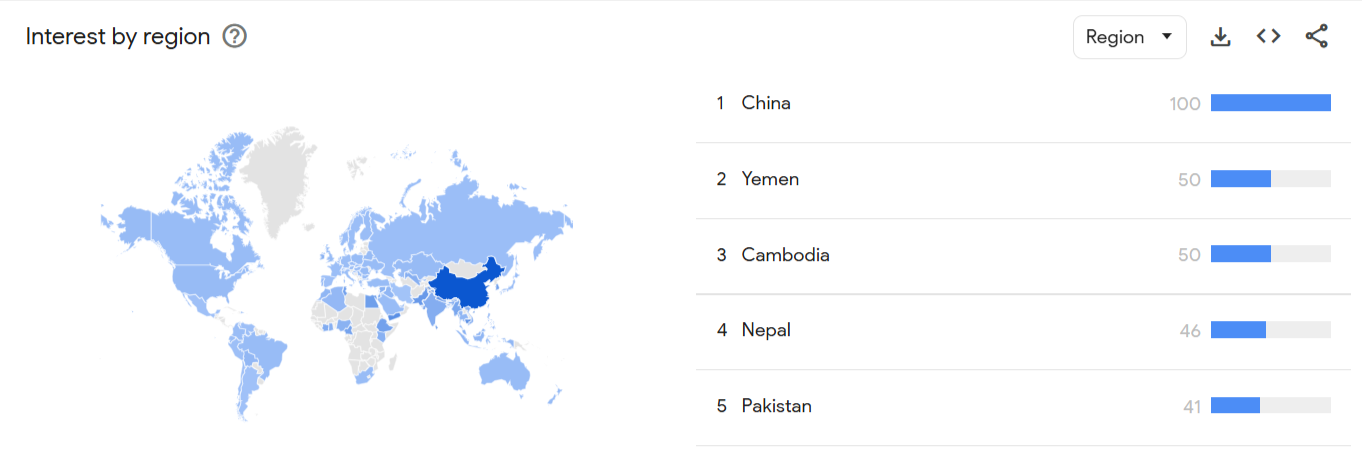
If we see the google trends for this then we can conclude that people from different regions are searching it and its trend is increasing.
Selection Criteria
I will select the participants based on their understanding of the lectures and on the completion of the tasks. I will check who has completed the task creatively making great UI and the applications run on the screen. Moreover I will look for the users who are interacting with others and commenting on each other's posts giving suggestions and recommendations to each other.
| Social | Handle |
|---|---|
| Telegram | mohammadfaisal7 |
| Discord | mohammadfaisal7 |
🎉 Congratulations!
Your post has been upvoted by the SteemX Team! 🚀
SteemX is a modern, user-friendly and powerful platform built for the Steem community.
🔗 Visit us: www.steemx.org
✅ Support our work — Vote for our witness: bountyking5