7 Free AI Tools For Beginners.
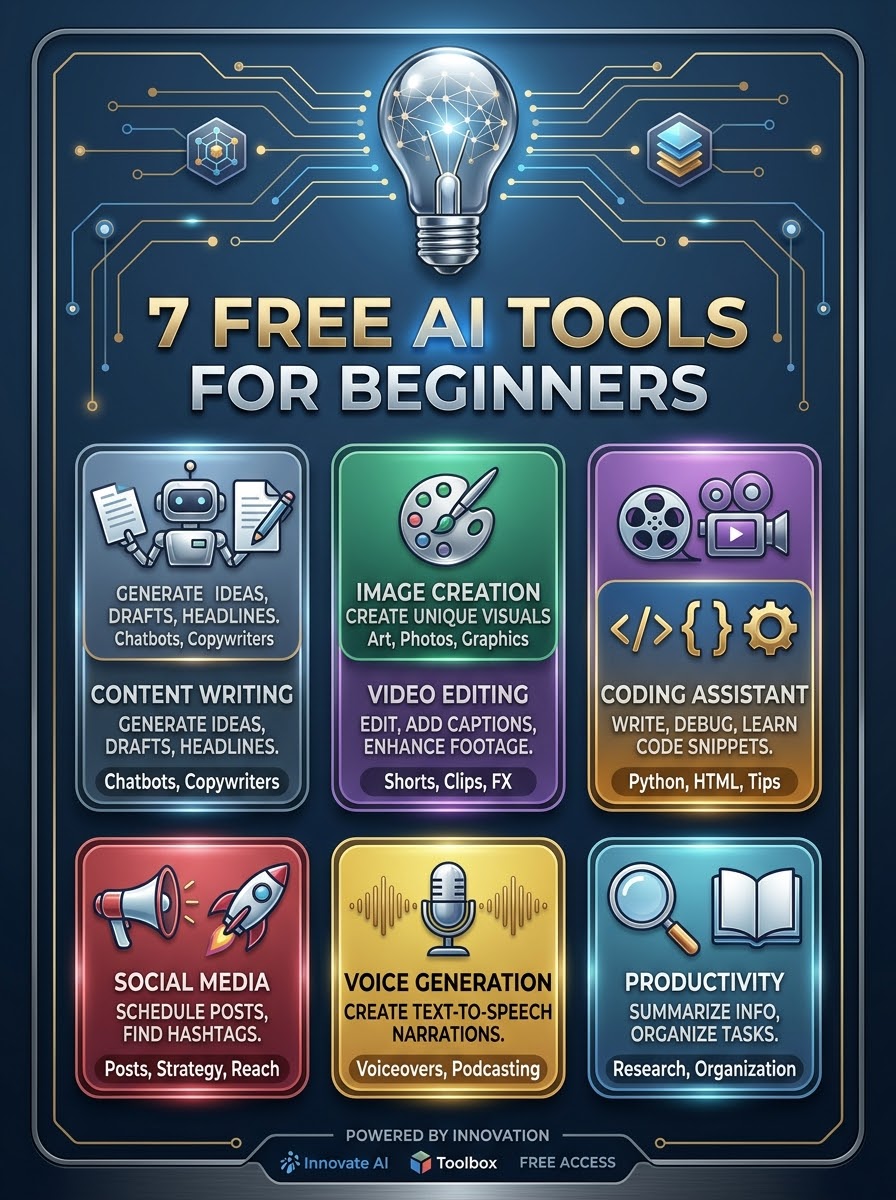
7 Free AI Tools for Beginners (With Personal Use Tips)
If you’re just getting started with AI, you don’t need to pay anything. There are powerful free tools that can help you write, learn, create images, and stay organized. Below are 7 beginner-friendly AI tools, explained in simple words, plus how I (and many users) actually use them in daily life.
ChatGPT (Free) – Your Everyday Writing Partner
What it is: A chatbot that can write, explain, summarize, and brainstorm with you.
Best for: Drafting emails, essays, social posts, and learning new topics.
Free limits: You get a generous number of messages; after a while it may switch to a lighter model, but it’s still very useful.
Personal use tip:
I use ChatGPT to turn rough notes into clean paragraphs. For example, I type: “Turn these bullet points into a short blog intro,” paste my messy ideas, and get a ready-to-edit draft in seconds.Google Gemini (Free) – Research + Writing + Images
What it is: Google’s AI assistant that can chat, search the web, and even generate images.
Best for: Research-heavy writing, fact-checking, outlines, and quick visuals.
Free limits: Very generous free tier with chat, web search, and image generation built in.
Personal use tip:
When I need up-to-date info (like “latest free AI tools in 2026”), I ask Gemini to search and summarize. I also use it to reorganize my drafts: “Make this section clearer and shorter.”Grammarly (Free) – Your AI Editor
What it is: A browser extension and editor that checks grammar, spelling, and clarity.
Best for: Polishing emails, essays, and posts before you hit send.
Free limits: Core grammar and spelling checks are free; advanced style suggestions need paid plans.
Personal use tip:
I keep Grammarly on while writing anywhere (Gmail, Google Docs, social media). It catches small mistakes I miss and suggests smoother phrasing, so my writing looks more professional with zero extra effort.Canva (Free) + Magic Write – Easy Design + Quick Copy
What it is: A design tool with AI features (Magic Write) to generate text for posts, captions, and slides.
Best for: Social media graphics, presentations, and simple marketing visuals with AI-written text.
Free limits: Lots of free templates; Magic Write has a free quota you can use without paying.
Personal use tip:
I use Canva to make Instagram posts fast: I ask Magic Write for 5 caption ideas, pick the best, and drop it into a template. It saves me from staring at a blank screen.Bing Image Creator (Free) – Simple AI Art
What it is: A free image generator from Microsoft. You describe what you want, and it creates pictures.
Best for: Blog headers, social images, and fun visuals without learning complex tools.
Free limits: Free with a Microsoft account; you get a set number of “boosts” daily for faster generation.
Personal use tip:
For blog posts, I type prompts like “minimalist illustration of a person using AI tools, soft colors” and get unique images in seconds. It makes my articles look more original without hiring a designer.Perplexity (Free) – Fast, Cited Answers
What it is: An AI search engine that gives clear answers with sources.
Best for: Learning new topics, quick research, and finding reliable links.
Free limits: Very usable free plan; you can ask many questions and get cited results.
Personal use tip:
When I’m writing an article (like this one), I ask Perplexity: “List the best free AI tools for beginners in 2026.” It returns a short list with links, so I can verify and add accurate details.Notion (Free) + Notion AI (Free Trial) – Organize + Write
What it is: A notes and docs app; Notion AI helps summarize, expand, and clean up text.
Best for: Keeping project notes, study guides, and content calendars in one place.
Free limits: Notion itself is free; Notion AI has a free trial and limited free responses to start.
Personal use tip:
I store all my content ideas in Notion. When I’m stuck, I highlight a rough outline and ask Notion AI: “Turn this into a 3-paragraph draft.” It gives me a base I can quickly edit.
How to Start (Simple Plan)
Day 1–3: Use ChatGPT or Gemini to draft your next email or post.
Day 4–7: Add Grammarly to your browser and let it polish everything you write.
Week 2: Try Bing Image Creator or Canva for one visual per post.
Ongoing: Use Perplexity for quick research and Notion to keep your ideas organized.
These 7 tools cover writing, editing, images, research, and organization—all for free. Start with two (for example, ChatGPT + Grammarly), then add others as you get comfortable.