Image to video using Seedance 2
Image to video using Seedance 2
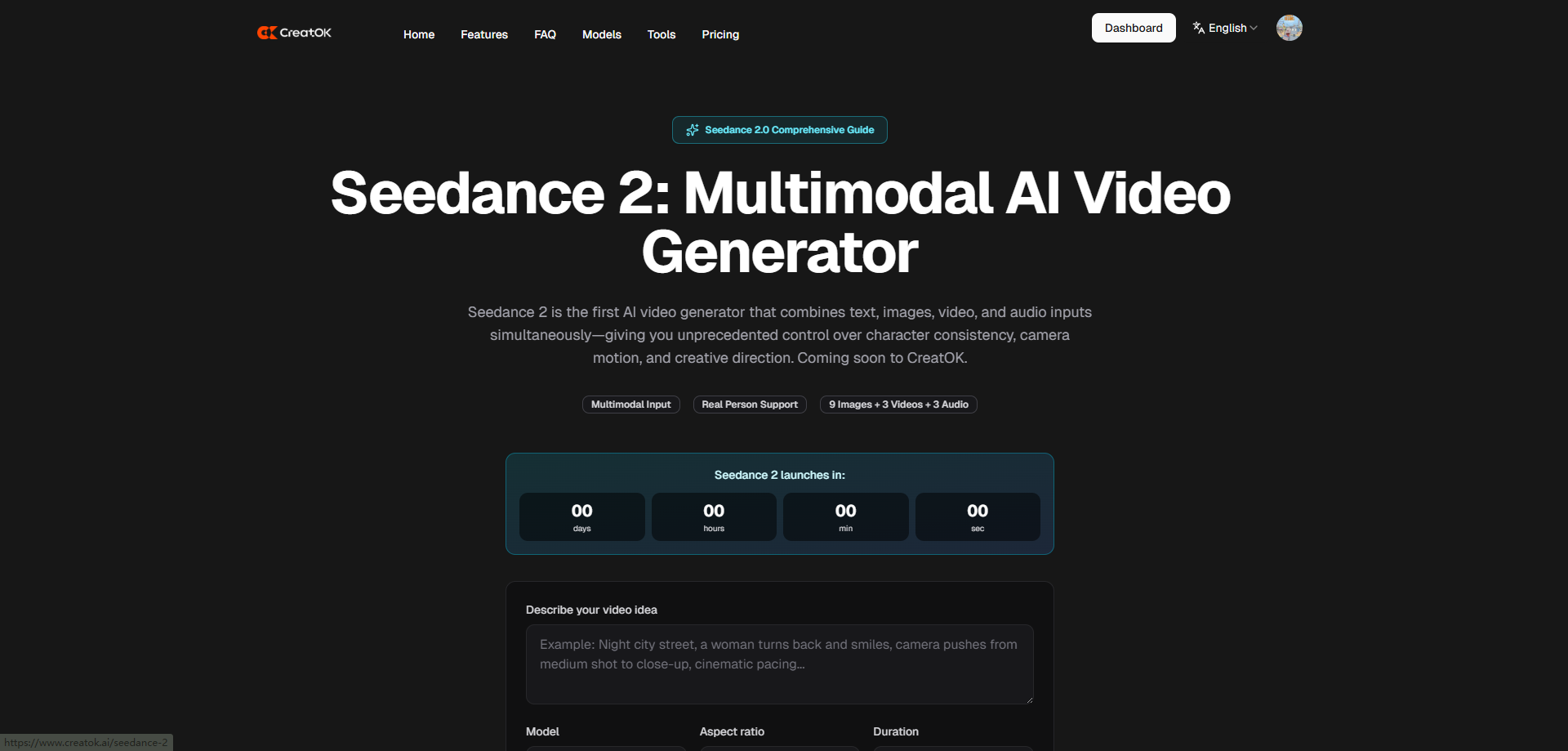
Image Source: unsplash
Image to video using Seedance 2 lets you change one picture into a cool video. You only need to upload your image. Seedance 2.0’s smart AI helps you make a video that looks really good. You do not need editing skills or special programs. This tool makes it easy and fun for anyone.
Key Takeaways
Seedance 2 lets anyone make videos from images. You do not need special skills or software.
The platform works with many media types. Users can mix images, videos, audio, and text. This helps tell better stories.
Cinematic controls let users change video style and camera angles. Lip sync can also be adjusted. This makes videos look better and more creative.
Users can make videos fast. Most projects take only 4 to 6 minutes.
Seedance 2 is great for social media and marketing. It helps users make fun content. This can help more people see and like their posts.
Seedance 2 Features
Image Source: pexels
You might wonder why Seedance 2 is special. Here are its main features:
What It Does
AI Video Generation
Turns your ideas into videos with smart AI
Multi-Modal Inputs
Lets you use images, videos, audio, and text in one project
Cinematic Controls
Gives you tools to shape the look, feel, and sound of your video
Multi-Shot Storytelling
Helps you build stories with several scenes or shots
Pro-Grade Output
Delivers sharp, high-resolution videos ready for sharing
AI Video Generation
Seedance 2 uses smart AI to help you make videos from your ideas. You can start with one image or add other media. The AI does the hard parts for you. Your video will have smooth movement, matching sound, and clear details. When you look at other tools, Seedance 2 is better at syncing audio and giving you more creative choices. Check out this chart:
Seedance 2 works well for most projects. It is great if you want to control how your video looks. The videos are high quality. Sometimes, the motion or faces are not perfect because of strong filters.
Multi-Modal Inputs
You can use many types of media in one project. This means you can add up to 9 images, 3 videos, 3 audio clips, and text prompts. Here is a table that shows what you can use:
Input Type
Description
Images
Up to 9 images for faces, backgrounds, or style ideas
Videos
Up to 3 videos for camera moves or action scenes
Audio
Up to 3 audio clips (15 seconds each) for music or sound effects
Text
Prompts for scene details and creative notes
This makes it easy to mix pictures, sounds, and words. You can tell better stories and set the mood with music or text.
Cinematic Controls
You get many ways to change your video. Seedance 2 lets you pick the style, move the camera, and match lips to speech. Here is what you can change:
Feature
Description
Natural Motion and Style Control
Smooth, stable movement and style choices
2K Cinematic Resolution
Crisp, pro-level video quality
Multiple Aspect Ratios
Choose from 16:9, 9:16, 4:3, 3:4, 21:9, or 1:1 for the best fit
Phoneme Level Lip Sync
Realistic mouth movement for dialogue in 8+ languages
Versatile Style Control
Switch between photorealistic and animated looks instantly
Tip: Try out different styles and sizes to see what works best for your story.
With these tools, you can turn a simple idea into a nice video. Seedance 2 makes it easy to go from image to video, even if you are new.
Image to Video Steps
Image to Video Steps
Image Source: unsplash
You can turn your favorite picture into a video with Seedance 2. The process is simple and works for beginners. Let’s walk through each step.
Accessing Seedance 2
First, you need to get into Seedance 2. You can use your browser. You need a China TikTok account that supports cross-region login and Alipay payment. The basic membership costs ¥1 RMB for 7 days. Here’s a quick look at what you need:
Requirement
Details
Membership Type
¥1 RMB for a 7-day Basic membership
Account Requirement
China TikTok account with cross-region login and Alipay payment support
Note: Make sure your account meets these requirements before you start.
Uploading Images
Once you’re in, you can upload your image. Seedance 2 supports PNG, JPG, JPEG, and WEBP formats. You can add up to 9 images for your project. If you want to avoid upload errors, check your file type and size. Here’s a quick guide:
Setting Parameters
Now, you can set how your video will look. You get to pick the camera angle, style, and resolution. These choices change the final video quality. Try to use images that show the style you want. Make sure your colors and lighting match your vision. If you want high detail, use high-quality images. You can also trim videos to show the camera move you want. Here are some things to keep in mind:
Choose images that show your visual style.
Keep color grading consistent.
Use images with clear lighting.
Pick high-detail images for sharp videos.
Try different aspect ratios for your platform.
Experiment with settings to see what works best for your story.
Writing Prompts
You can write prompts to guide the AI. Good prompts help create cinematic videos from your images. Try to be clear and creative. Here are some examples:
A street dancer moves through an empty parking garage, hitting poses on each beat drop. Camera cuts sync to music tempo — wide shot on verse, close-up on chorus, slow-motion on bridge. Neon tube lights pulse with the bass.
High contrast black and white, dramatic shadows, venetian blind light patterns, rainy window reflections, 1940s detective atmosphere.
Neon-soaked streets, holographic signs, rain-slicked surfaces reflecting pink and blue light, Blade Runner atmosphere, dystopian night city.
Soft watercolor painting aesthetic, visible brush strokes, pastel color palette, dreamy blurred edges, Studio Ghibli-inspired gentle movement.
VHS tape artifacts, scan lines, chromatic aberration, warm analog color cast, 80s camcorder quality, slight tracking issues, nostalgic feel.
Planet Earth style, sweeping aerial shots, crystal-clear detail, natural lighting, rich earth tones, David Attenborough narration feel.
High-fashion photography, strong composition, controlled chaos, editorial lighting, Vogue magazine aesthetic, bold color grading, confident poses.
Try mixing prompts and images for unique results. The more details you give, the better your image to video output.
Generating Video
You’re ready to make your video. Click generate and let the AI do the work. For simple character animations, it takes about 4-5 minutes. If you use many files, it may take 5-6 minutes. When the video is ready, you can download it and share it. Here’s a quick step-by-step:
Add your prompt or upload an image.
Choose style and duration.
Generate and export your video.
Sometimes, you may face challenges like low resolution or long wait times. If you want higher quality, use specific prompts and select the right tier. If you see upload errors, check your file format and size. Free-tier users may wait longer during busy times.
You can create your own image to video project in just a few minutes. The process is easy and works for anyone, even if you’re new to video creation.
Review and Improve
Evaluating Results
After you make your video, watch it closely. Look at the parts that matter most to you. Your video should move smoothly and look clear. It should also match what you wanted. Here is a table with important things to check in your video:
Metric
Seedance 2.0
Sora 2
Edge Stability
8/10
7/10
Motion Flow
9/10
7/10
Style Consistency
8/10
7/10
Face Consistency
7/10
7/10
Camera Control
9/10
7/10
Physics Accuracy
7/10
9/10
Emotional Expression
6/10
8/10
Average
7.7
7.4
Grouped bar chart comparing Seedance 2.0 and Sora 2 video quality metrics
Check if the motion is smooth and the edges are steady. Make sure the style matches your prompt. If faces or camera moves look strange, you can fix them later.
Tip: Watch your video more than once. Try to find any parts that do not fit the story or mood.
Iterating with Prompts
You can make your image to video project better by changing your prompts or settings. Even small changes can help a lot. Here are some ways to improve your video:
Strategy
Description
Optimize Your Prompts
Be clear about timing and actions.
Describe Camera Moves
Say how you want the camera to move.
Split Complex Actions
Break big actions into smaller steps.
Reference File Strategy
Use 1-2 images for character consistency. Keep video clips under 10 seconds.
Audio Drives Pacing
Use music or sound to set the rhythm.
Use Extensions Wisely
Extend clips for smooth flow or start fresh for new angles.
You can also try these quick tips: Use more than one asset, but tell Seedance 2 what each one does. Describe scene changes as smooth transitions. Give clear audio instructions for better sync.
Changing your prompt can help keep characters looking the same. It can also make camera moves look better and give you more control. You can make your story flow better and show more emotion. Here is a table that shows how prompt changes can help your video:
Feature
Impact on Storytelling
Character Consistency
Keeps characters looking the same in every scene
Camera Motion
Makes movement look natural and cinematic
Creative Control
Lets you set the mood and pace with detailed instructions
Story Coherence
Helps your video feel like a real story
Emotional Flow
Keeps emotions steady from start to finish
Director-Style Control
Gives you more power over how your story unfolds
Try different prompts and settings. Each time you change something, you learn what works best for your story.
Use Cases
Social Media Content
You want your posts to get noticed. Seedance 2 can turn pictures into videos that catch people’s eyes. Using AI videos instead of still images can help you get 30–50% more clicks or sales. People who tried it saw more likes and longer watch times. Your posts might even go viral.
Make short videos for TikTok, Instagram, or YouTube Shorts.
Copy popular trends with just a few taps.
Add music and text prompts to fit your brand’s style.
Tip: Short and lively videos are best for social media. Try different looks to see what your followers enjoy.
Marketing Videos
Seedance 2 makes it simple to create marketing videos. You can make product ads and video slideshows from easy prompts. Many marketers use Seedance 2 to make lots of ad versions in one morning. Online stores turn product pictures into lifestyle videos for each item.
Here’s a table that shows how different jobs use Seedance 2 for marketing:
Role
How They Use Seedance 2
Performance Marketers
Test many ads quickly with over 20 versions
Brand Managers
Make animated previews for campaign approval
Social Media Managers
Create video series for different platforms
Agencies & Freelancers
Offer video services without hiring more people
Corporate Teams
Make training and team videos easily
You can make your campaigns faster and try new ideas. See what works best by testing different videos.
Creative Projects
Seedance 2 helps artists and storytellers do more. You can mix pictures, videos, and sounds to make cool stories. Short film makers and creators use Seedance 2 to plan and test their ideas.
Make a whole story in one video.
Keep characters and places the same in every scene.
Show off music videos or art shorts with special looks.
Feature
Benefit
Multimodal Capabilities
Mix pictures, movement, and sound for more control
Narrative Building
Make full stories fast
Consistency
Keep details the same in your project
Seedance 2 is easy to use, so you can try new ideas. It works fast, so you don’t have to wait long to see results.
You can use Seedance 2 for comics, scripts, ads, learning, and more. There are so many things you can make. Start with a picture you like and see what you can create.
Seedance 2 makes turning images into videos easy and fun. You don’t need film skills or fancy tools. Users love how they can create a cinematic story from just two photos. They say the process feels simple and lets them share ideas that were hard to show before.
You get better storytelling.
You save time on video creation.
Your brand looks more consistent.
You can compete online with less effort.
Try Seedance 2. Share your videos. New AI tools like this help you create more and worry less.
FAQ
How do I start an image to video project in Seedance 2?
You just log in, upload your image, and follow the steps on the screen. The platform guides you through each part. You do not need special skills.
What file types can I use for image to video?
You can use PNG, JPG, JPEG, or WEBP files. Make sure your image is clear and not too large. This helps Seedance 2 create a better video.
How long does it take to make a video?
Most videos finish in about 4 to 6 minutes. If you add more images or audio, it might take a little longer. You can watch the progress bar as you wait.
Can I use Seedance 2 for free?
You need a basic membership to use Seedance 2. The cost is ¥1 RMB for 7 days. You must have a China TikTok account and Alipay for payment.
What if my image to video result looks strange?
Try changing your prompt or upload a different image. You can also adjust the style or camera settings. Small changes often fix most problems.
See Also
Creating Videos from Text with Seedance 2.0 Made Easy
Step-by-Step Guide to Using Seedance 2 for Social Media
Transforming Text into Engaging Videos with Seedance 2
Seedance 2 AI Video Generator Simplifies Video Creation in 2026
Achieving Flawless Audio and Video Synchronization with Seedance 2.0