Windows 11 Home vs Pro: Key Differences and Which One You Actually Need
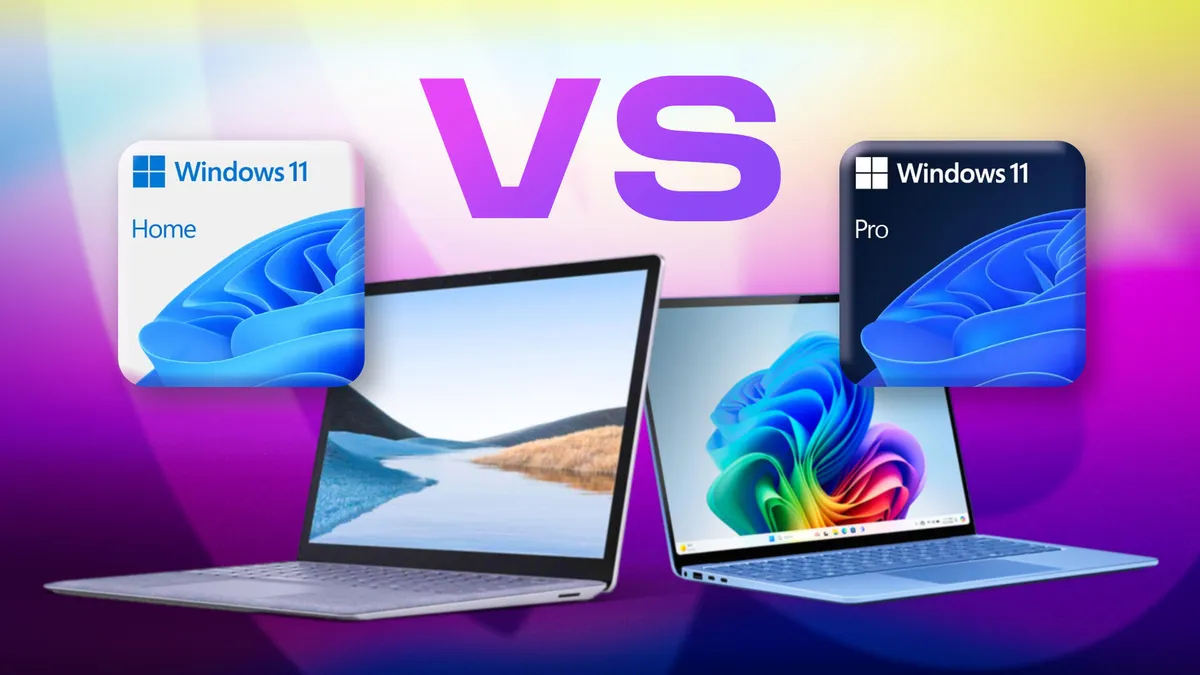
Choosing between Windows 11 Home and Windows 11 Pro isn't just about price - it's about making sure you're paying for the features you'll actually use. This guide breaks down every meaningful difference between the two editions so you can make a confident, informed decision.
Quick Comparison: Windows 11 Home vs Pro at a Glance
| Feature | Windows 11 Home | Windows 11 Pro |
|---|---|---|
| Price (standalone license) | $139.99 | $199.99 |
| BitLocker Drive Encryption | Device Encryption only | Full BitLocker + management |
| Remote Desktop (host) | ❌ | ✅ |
| Hyper-V (virtualization) | ❌ | ✅ |
| Windows Sandbox | ❌ | ✅ |
| Microsoft Entra ID (domain join) | ❌ | ✅ |
| Group Policy Management | ❌ | ✅ |
| Windows Update for Business | ❌ | ✅ |
| Assigned Access (kiosk mode) | ❌ | ✅ |
| Max RAM supported | 128 GB | 2 TB |
| CPU socket support | 1 | 2 |
| Windows Subsystem for Linux (WSL) | ✅ | ✅ |
| Microsoft Teams & OneDrive | ✅ | ✅ |
| Snap Layouts | ✅ | ✅ |
| Windows Hello & Secure Boot | ✅ | ✅ |
| TPM 2.0 requirement | ✅ | ✅ |
What Windows 11 Home and Pro Have in Common
Before diving into differences, it helps to know what you're getting with either edition. Both Windows 11 Home and Pro ship with:
- The same core interface, including the redesigned Start menu, Snap Layouts, and Widgets panel
- Windows Defender antivirus and Windows Security for baseline protection
- Secure Boot and TPM 2.0 requirements, enforced at the hardware level
- Windows Hello biometric sign-in (fingerprint and facial recognition)
- Microsoft Teams integration and OneDrive cloud storage
- The Microsoft Store and Xbox Game Pass compatibility
- Windows Subsystem for Linux (WSL) for running Linux environments
- Full support for DirectX 12 and gaming-focused features like Auto HDR and DirectStorage
For the vast majority of everyday tasks - browsing, streaming, productivity, gaming - both editions perform identically.
Key Differences Between Windows 11 Home and Pro
1. Security and Encryption
Windows 11 Home includes Device Encryption, a streamlined version of drive encryption that activates automatically on compatible hardware when you sign in with a Microsoft account. It provides solid baseline protection for personal use.
Windows 11 Pro includes the full BitLocker Drive Encryption suite, which gives IT administrators and power users granular control: choosing encryption algorithms, managing recovery keys centrally, enforcing encryption policies across devices, and encrypting removable drives with BitLocker To Go.
Note: Microsoft deprecated Windows Information Protection (WIP) in 2022. It is no longer available or recommended in current Windows 11 deployments. Organizations requiring data loss prevention (DLP) should use Microsoft Purview instead.
Bottom line: If you store sensitive client data, financial records, or proprietary files, BitLocker's management capabilities in Pro are worth the upgrade.
2. Remote Desktop Access
Windows 11 Home can connect to a remote PC using the Remote Desktop client, but it cannot act as a host - meaning other computers cannot remotely access a Home machine.
Windows 11 Pro supports full Remote Desktop hosting. You can connect to your Pro workstation from any device, anywhere - useful for accessing work files from home or providing remote IT support.
If you rely on remote access for work, this is one of the most practical reasons to choose Pro.
3. Virtualization: Hyper-V and Windows Sandbox
Windows 11 Home does not include Hyper-V or Windows Sandbox. (WSL and WSL 2 are available on Home for Linux-based development workflows.)
Windows 11 Pro includes:
- Hyper-V - Microsoft's built-in hypervisor for creating and managing virtual machines. You can run isolated copies of Windows, Linux, or other operating systems without third-party software.
- Windows Sandbox - a lightweight, disposable virtual desktop that resets to a clean state every time you close it. Ideal for safely testing unfamiliar software or opening suspicious files.
For developers, security researchers, or anyone who regularly tests software, these features alone can justify choosing Pro.
4. Device Management and Business Tools
Windows 11 Home is designed for single-user personal setups with no centralized management tools.
Windows 11 Pro includes:
- Microsoft Entra ID (formerly Azure Active Directory) - joins your PC to a cloud-based organizational directory, enabling single sign-on, conditional access, and centralized identity management
- Domain Join - connects your device to an on-premises Active Directory domain
- Group Policy Management - lets IT administrators enforce settings, restrictions, and configurations across an entire fleet of machines
- Windows Update for Business - gives IT teams control over when and how updates are deployed, allowing testing before rollout
- Assigned Access - restricts a device to run only a single app (kiosk mode), useful for point-of-sale systems, self-service terminals, or shared workstations
These features are largely irrelevant for home users but essential for businesses managing more than a handful of computers.
5. Hardware Support
Both editions handle the demands of modern PCs, but Pro is built for high-end workstations:
| Windows 11 Home | Windows 11 Pro | |
|---|---|---|
| Max RAM | 128 GB | 2 TB |
| CPU sockets | 1 | 2 |
For most users - including gamers, video editors, and developers - 128 GB of RAM and a single-socket CPU is more than sufficient. Dual-socket workstations are primarily used in specialized scientific, engineering, or server environments.
Pricing: Windows 11 Home vs Pro
| Edition | Standalone License |
|---|---|
| Windows 11 Home | $139.99 |
| Windows 11 Pro | $199.99 |
| Upgrade (Home → Pro) | $99.99 |
If you purchase Home and later realize you need Pro features, Microsoft offers an in-place upgrade through the Settings app for $99.99 - no reinstallation required.
Note: Windows 11 often comes pre-installed on new PCs, where the price is folded into the hardware cost. Always check which edition is included before purchasing a device.
Who Should Choose Windows 11 Home?
Windows 11 Home is the right choice if you:
- Use your PC primarily for browsing, streaming, gaming, or personal productivity
- Are a student or work-from-home employee who doesn't need centralized IT tools
- Game on PC — all gaming features are identical between editions
- Don't need to host Remote Desktop connections or run virtual machines
- Want to keep costs low without sacrificing day-to-day performance
Windows 11 Home covers everything the average user will ever need.
Who Should Choose Windows 11 Pro?
Windows 11 Pro is the better investment if you:
- Work in IT and need to manage or configure multiple devices
- Require full BitLocker encryption with centralized key management
- Develop software and use virtual machines or sandboxed test environments
- Need to host Remote Desktop connections for remote work or support
- Are deploying a business PC that will join a Microsoft Entra ID or Active Directory domain
- Operate in a regulated industry where data encryption compliance is required
Windows 11 Home vs Pro: Which Should You Buy in 2026?
The choice comes down to one question: do you need the Pro-exclusive features?
If your answer involves remote desktop hosting, Hyper-V, BitLocker management, or enterprise device management, go with Pro. The $60 premium pays for itself quickly in professional environments.
If you're a home user, student, or gamer, Home is the smarter purchase. You won't miss the features you don't need, and you'll save money without any performance compromise.
Frequently Asked Questions
Can I upgrade from Windows 11 Home to Pro later?
Yes. Microsoft offers a digital upgrade path directly through Settings > System > Activation for $99.99. Your files and apps are preserved - no clean install required.
Is Windows 11 Home good enough for gaming?
Absolutely. All gaming-related features - DirectX 12 Ultimate, Auto HDR, DirectStorage, Xbox Game Bar, and Game Pass — are available on both editions. Pro offers no gaming advantage.
Does Windows 11 Home have encryption?
Windows 11 Home includes Device Encryption, which automatically encrypts your drive on supported hardware when signed in with a Microsoft account. For advanced encryption management (e.g., compliance requirements, recovery key management), you'll need the full BitLocker suite in Pro.
Can Windows 11 Home connect to a VPN?
Yes. Both Home and Pro support VPN connections using built-in protocols (IKEv2, L2TP, SSTP, OpenVPN) as well as third-party VPN clients.
What happened to Windows Information Protection (WIP)?
Microsoft deprecated WIP in 2022. It is no longer a supported feature in current Windows 11 deployments. Organizations needing data loss prevention should look to Microsoft Purview as the recommended replacement.
Does Windows 11 Pro run faster than Home?
No. Both editions share the same performance characteristics on equivalent hardware. The differences are entirely feature-based, not performance-based.
Final Verdict
| You are... | Choose... |
|---|---|
| Home user, student, or gamer | Windows 11 Home |
| Remote worker needing desktop hosting | Windows 11 Pro |
| Developer using VMs or sandboxes | Windows 11 Pro |
| IT admin managing multiple devices | Windows 11 Pro |
| Business requiring encryption compliance | Windows 11 Pro |
| Casual productivity or creative work | Windows 11 Home |
For most people, Windows 11 Home is the right call. It's fast, secure, and fully capable for daily use. But if your workflow depends on any of the Pro-exclusive features covered above, the upgrade is well worth the cost — and you can always start with Home and upgrade later if your needs change.
For official edition details and hardware specifications, refer to the Microsoft Windows 11 feature comparison.
FYI you can get a Windows 11 Pro key on A2Keys.com for super cheap.
https://www.a2keys.com/product/windows-11-professional-activation-key/