Wondershare Studio Explained: What It Does and When You Can Remove It
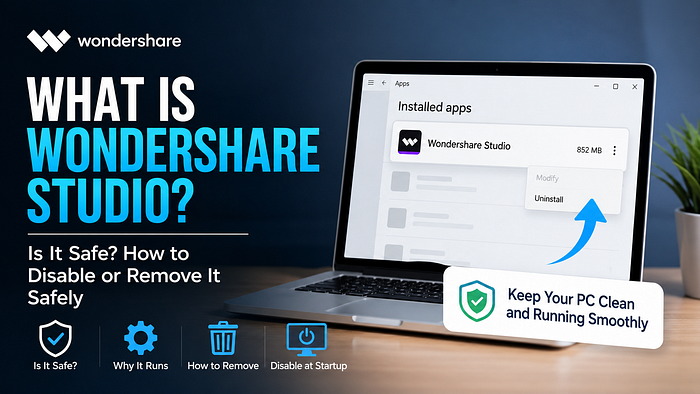
Have you ever opened your Windows PC and noticed an unfamiliar Wondershare process running in the background? Wondershare Studio can raise questions, especially when you do not remember installing it or wonder why it starts automatically with Windows. The good news is that it is generally connected to Wondershare software, so there is usually no reason to panic. Before removing it, however, it helps to understand what it does and whether any installed Wondershare applications still depend on it.
What Is Wondershare Studio?
Wondershare Studio is a background component associated with Wondershare applications. Depending on the software installed on your computer, related components may handle functions such as application support, updates, notifications, or other background tasks.
Wondershare develops several desktop applications, including tools for video editing, PDF management, and other digital tasks. As a result, Wondershare Studio may appear on a computer simply because another Wondershare product has been installed.
Why Does Wondershare Studio Run at Startup?
Some Wondershare applications add supporting processes to the Windows startup list. This allows certain services or application features to become available as soon as you sign in.
Although startup programs can be useful, not every background application needs to launch immediately. If you rarely use the associated Wondershare software, you may prefer to prevent it from starting automatically.
Is Wondershare Studio Safe?
The presence of Wondershare Studio alone does not mean that your computer is infected with malware. It is generally a legitimate component associated with Wondershare software.
However, if you are unsure about a particular executable or process, check its file location and the Wondershare application installed on your computer before making changes. Avoid deleting random executable files simply because their names look unfamiliar.
How to Disable Wondershare Studio From Startup
If you want to keep your Wondershare software but do not want its related component to launch automatically, disabling the startup entry can be a better option than uninstalling it.
On Windows:
-
Press Ctrl + Shift + Esc to open Task Manager.
-
Select Startup apps.
-
Find the Wondershare-related entry.
-
Select it and click Disable.
-
Restart Windows and check that your regularly used applications continue to work properly.
This method stops the program from launching automatically while leaving the installed software available when you need it.
How to Remove Wondershare Software
If you no longer use the Wondershare application associated with the component, you can uninstall it through Windows.
Go to Settings → Apps → Installed apps, locate the relevant Wondershare program, select the options menu, and choose Uninstall. Follow the instructions provided by the uninstaller and restart your PC if necessary.
It is better to use the normal Windows uninstall process rather than manually deleting Wondershare folders or individual files.
Should You Disable or Uninstall It?
Your choice depends on whether you still use Wondershare software.
-
Still use Wondershare software: Keep it installed and consider disabling unnecessary startup behavior.
-
Rarely use it: Disabling startup may be enough.
-
No longer use Wondershare products: Uninstalling the associated application is the cleaner option.
-
Not sure what installed it: Identify the related Wondershare application before removing anything.
For users who want a more detailed explanation of Wondershare Studio and its safe removal, this contextual guide provides additional information and practical steps.
Final Thoughts
Wondershare Studio is generally a supporting component for Wondershare software rather than something that should automatically be considered harmful. Before removing it, determine which Wondershare application it belongs to and whether you still use that application.
If you only want to reduce unnecessary programs launching with Windows, disabling the startup entry is usually a simple first step. If the related Wondershare software is no longer needed, uninstalling it through Windows provides a safer and cleaner solution.