SPEAK ON STEEM : Video Upload Tutorial From Beginning To End [ Direct & External Link ]
Assalamu Alaikum
All friends, how are you all? I hope everyone is very well. I am also well, Alhamdulillah, by the grace of Allah.
 |
|---|
- Here is the official link
https://speem.watch
I have been sharing videos for a long time and here I am in charge of the video watch team, as a result of which many people message me at different times how to upload videos and many people are facing many kinds of problems, so today I have shared with you how to upload videos in a very simple way. Here I have shown you how to upload directly and how to upload from YouTube through pictures in the tutorial and the video at the very bottom. I hope that after seeing this, you will understand everything very easily.
 |  |
|---|
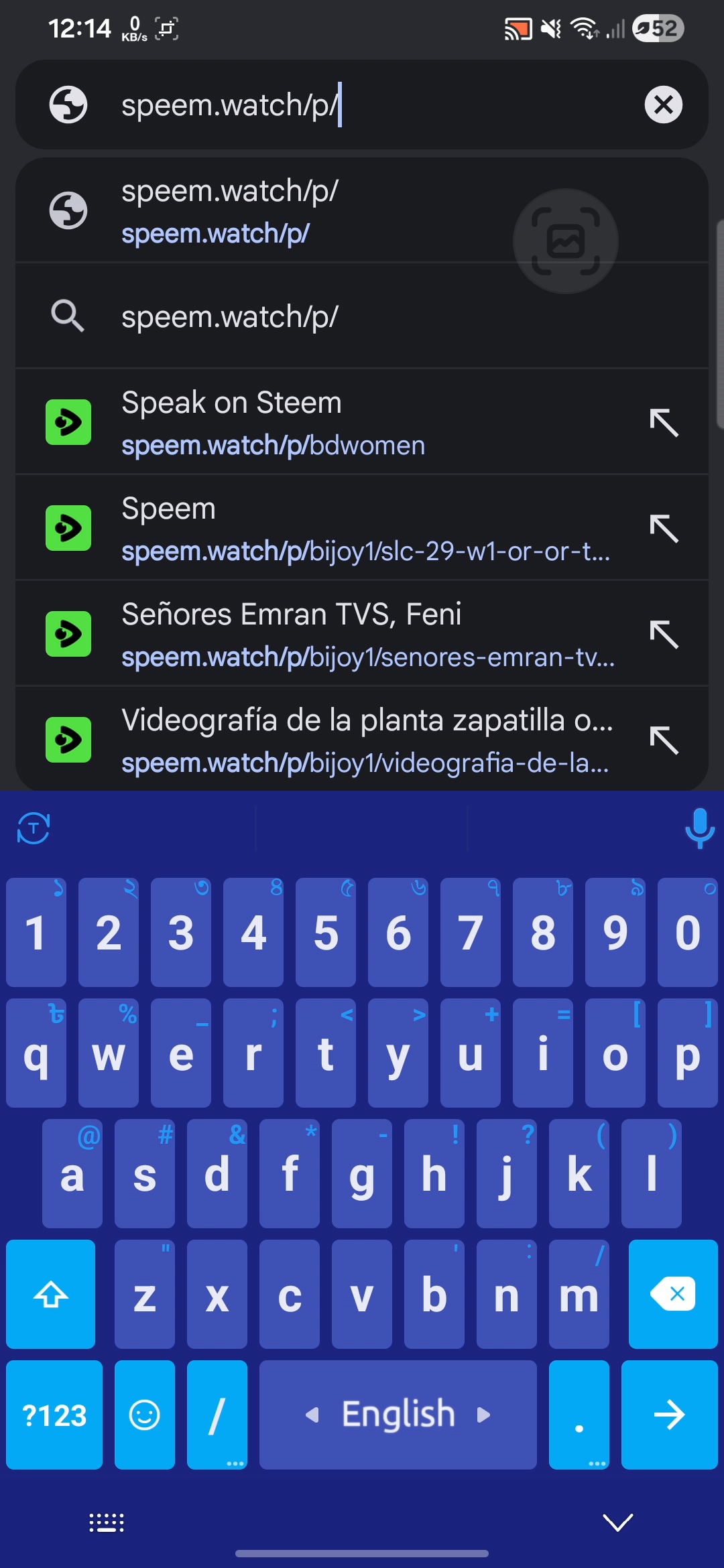
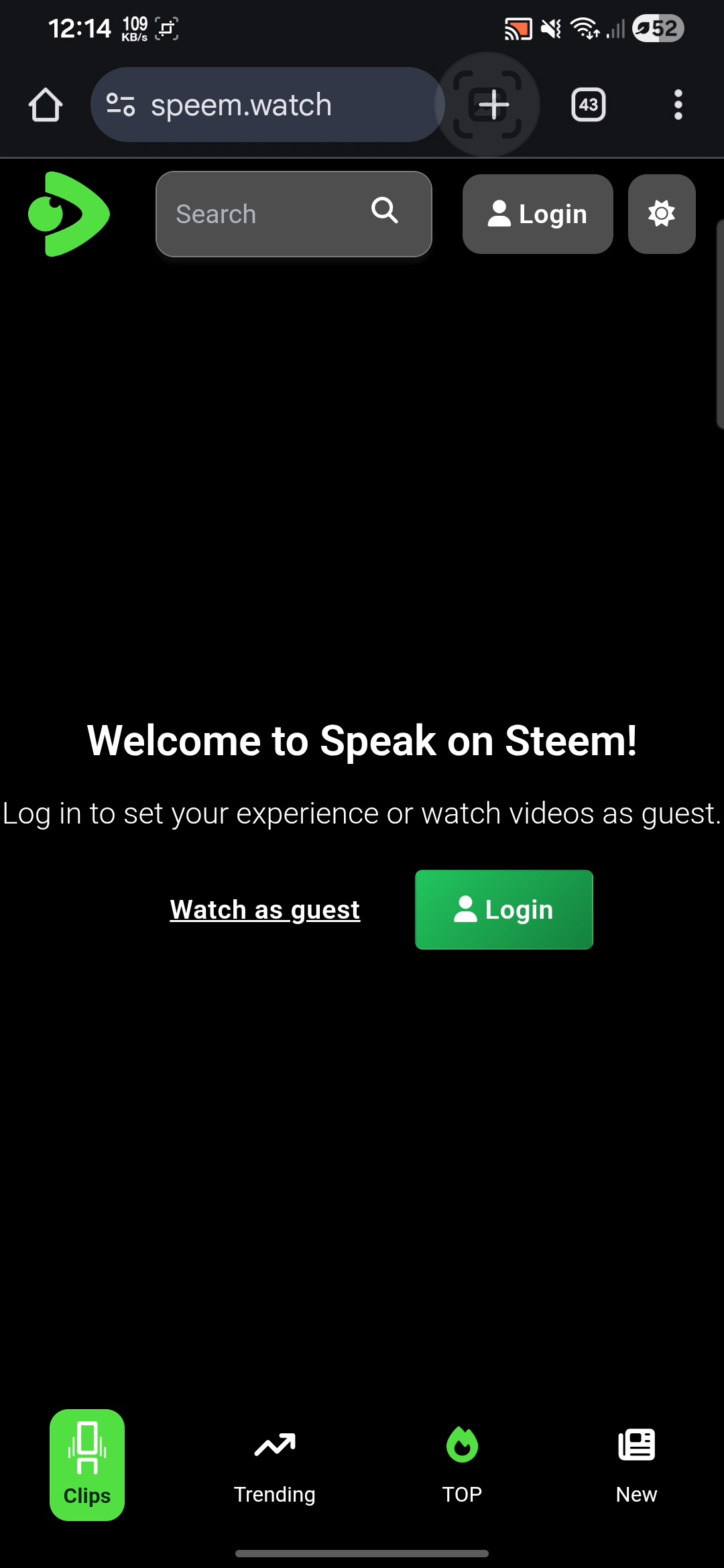
Simply Type on Google or Click this link
 |  |
|---|
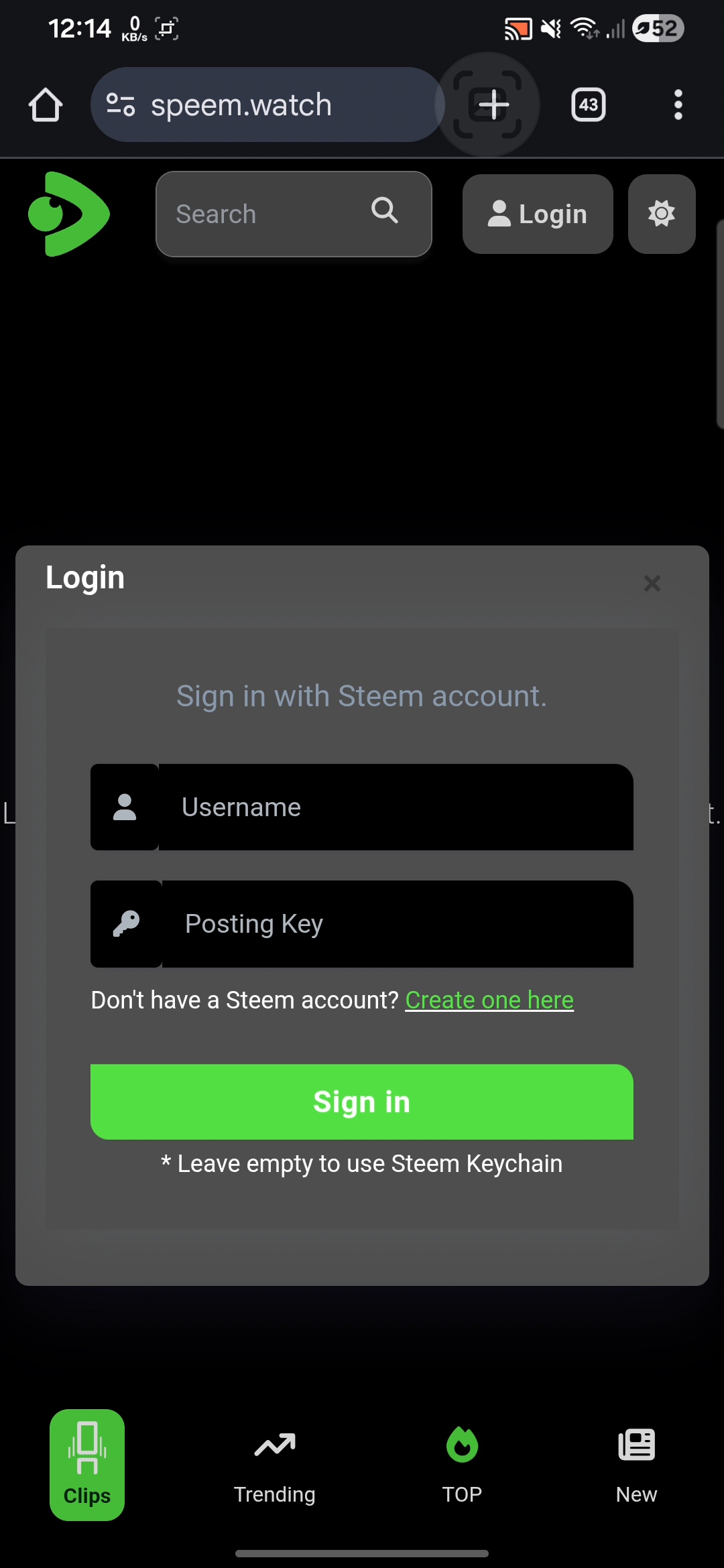
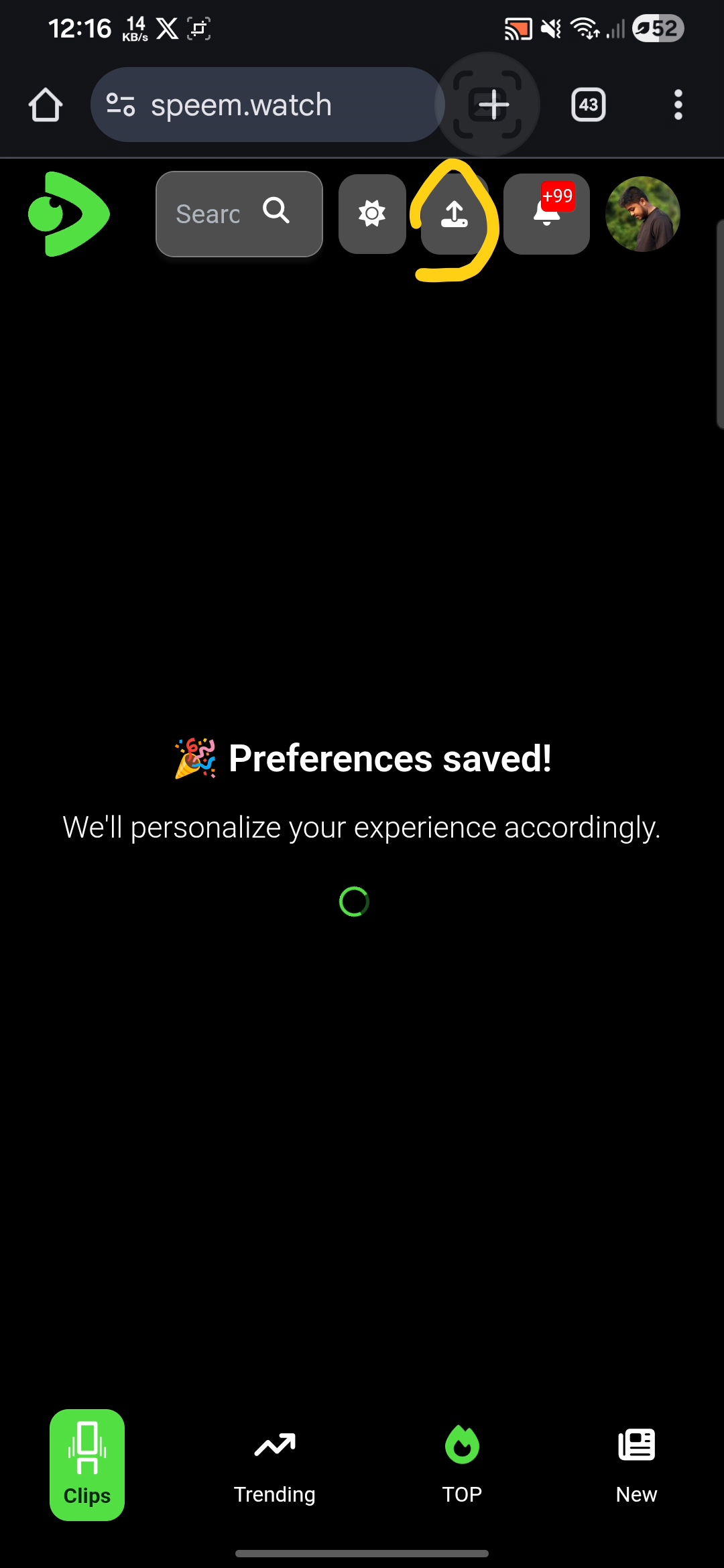
Put your username & posting key/password. Then at the top upload button, click here.
 |  |
|---|
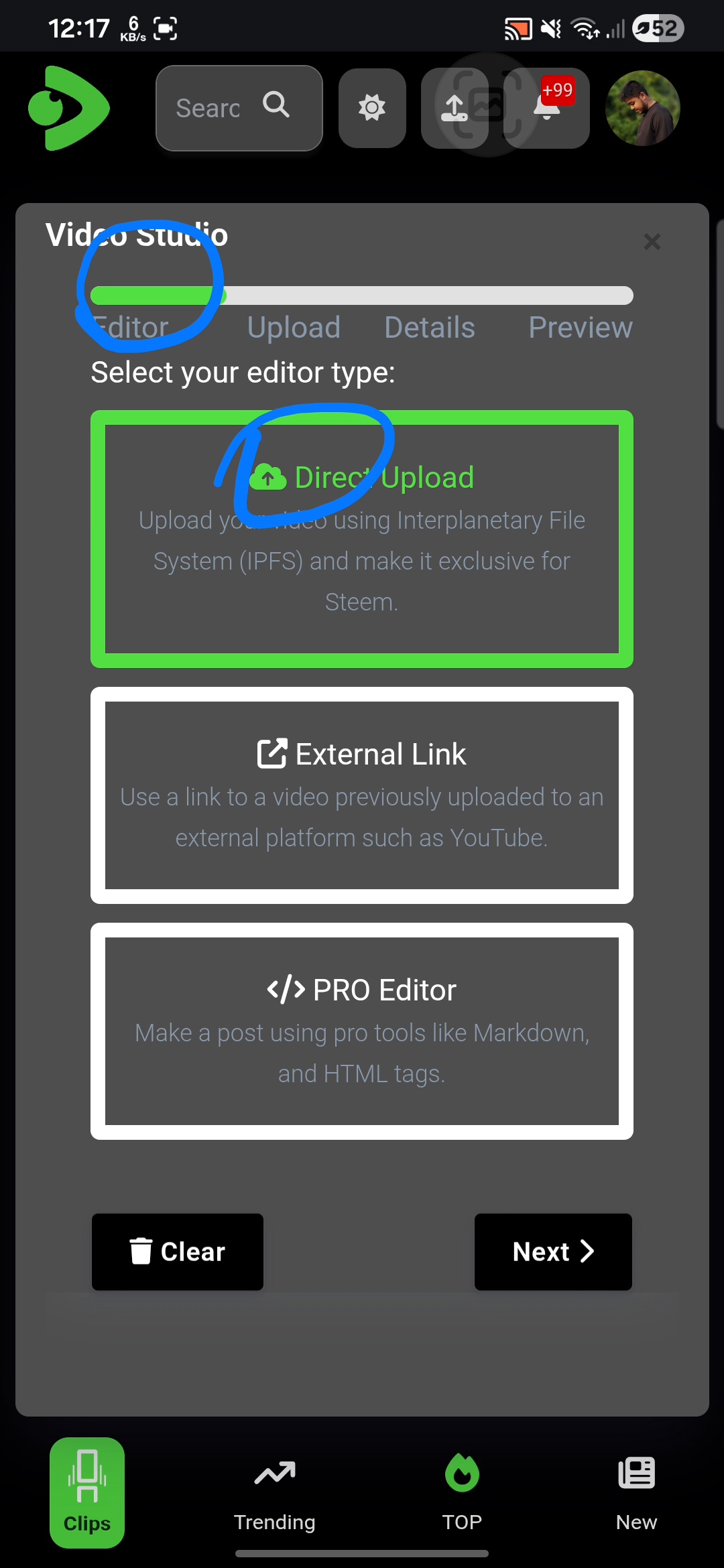
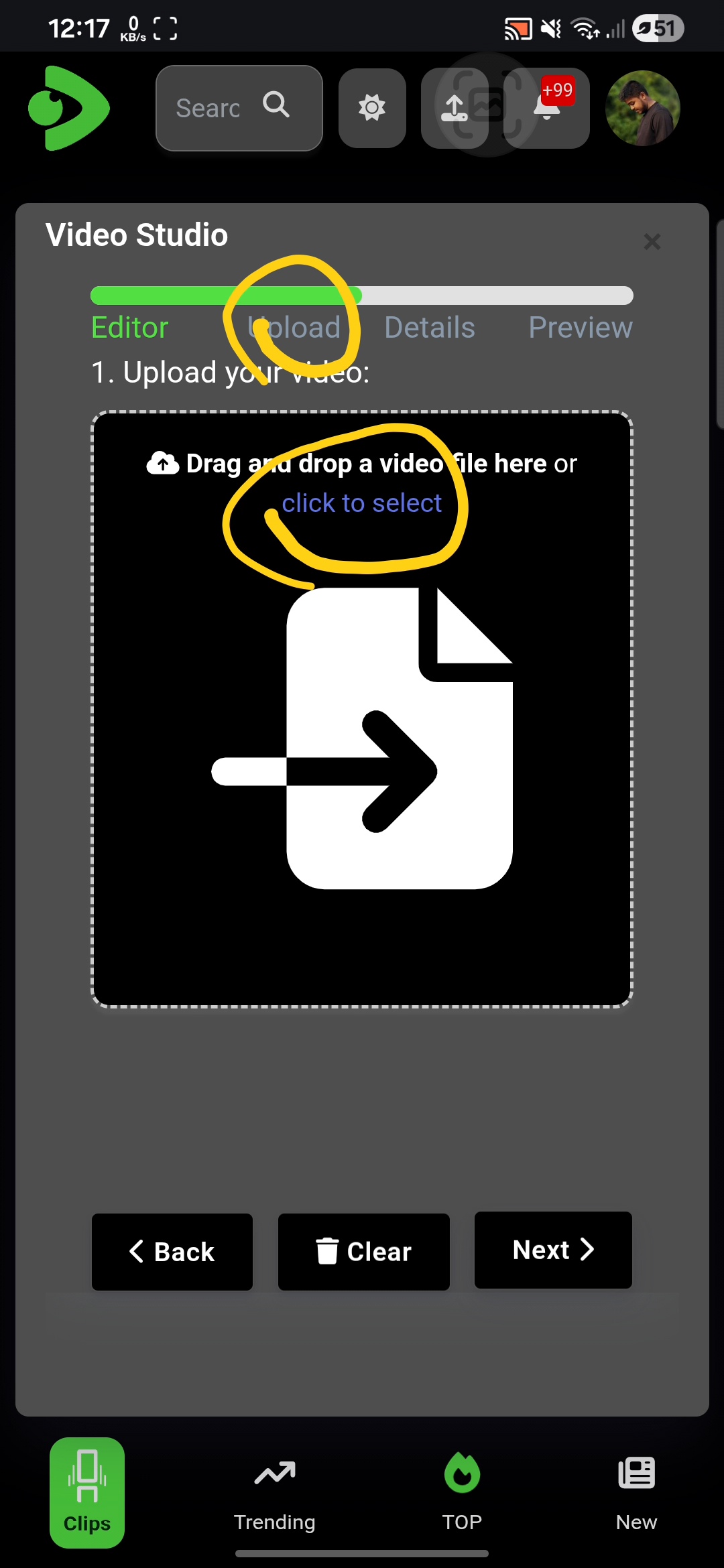
Select Direct upload and then next. Then tap on it & select a video from your device.
 |  |
|---|
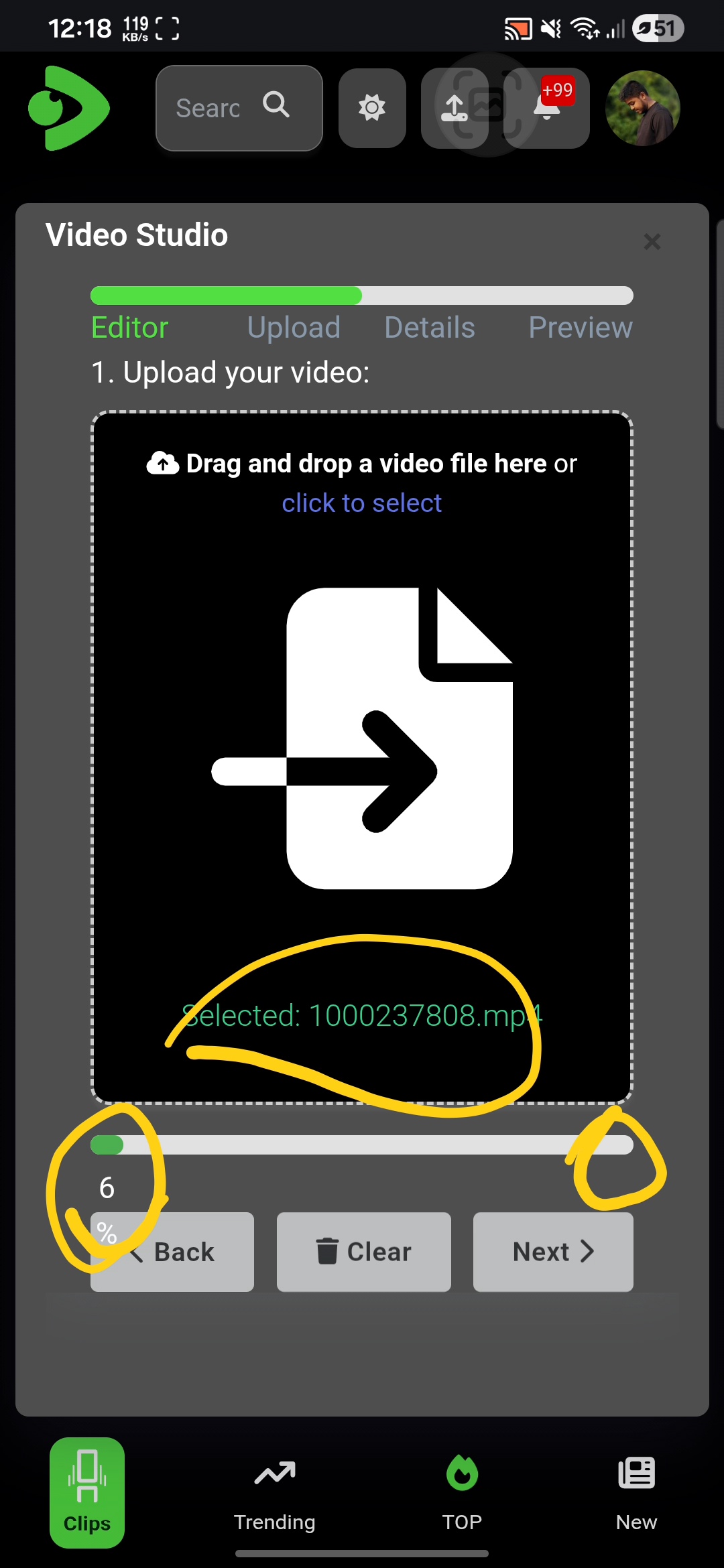
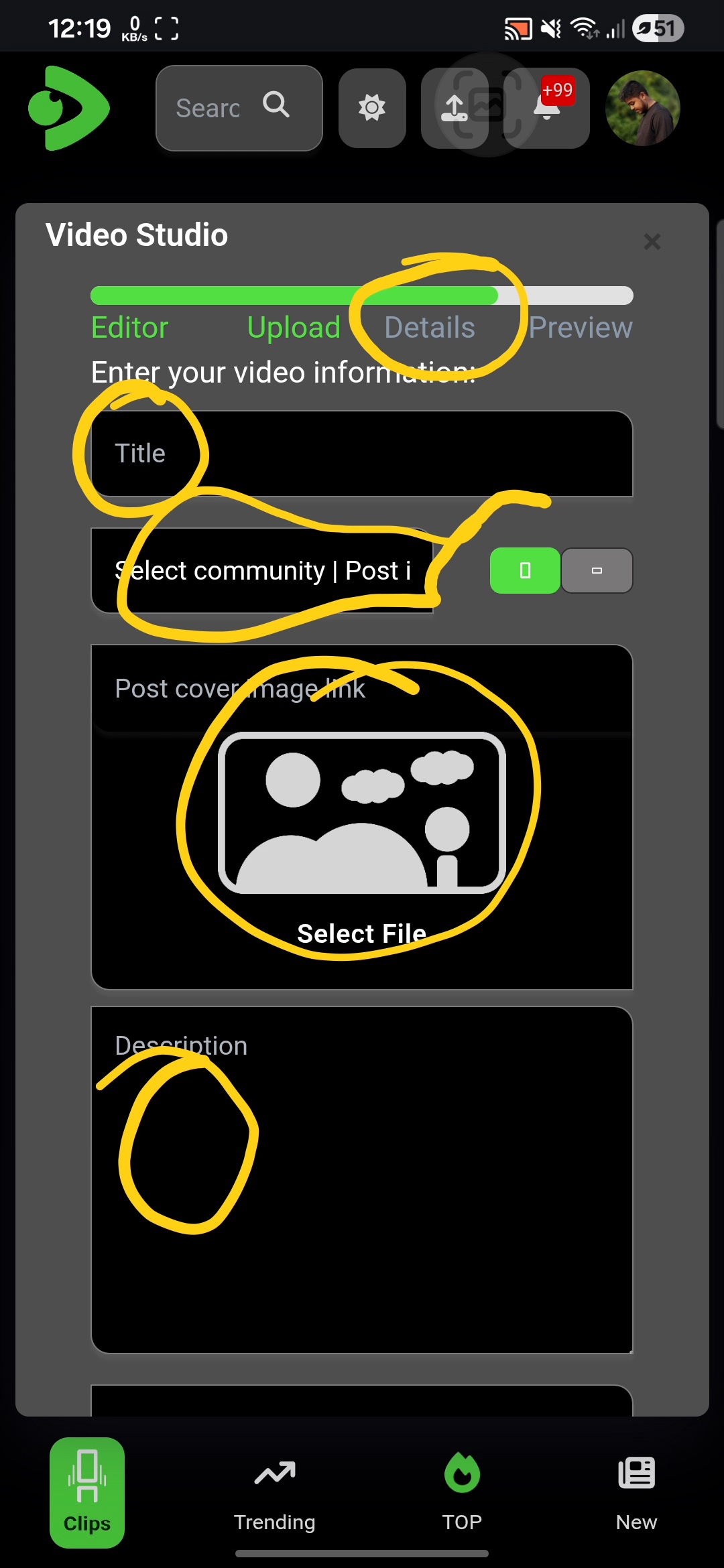
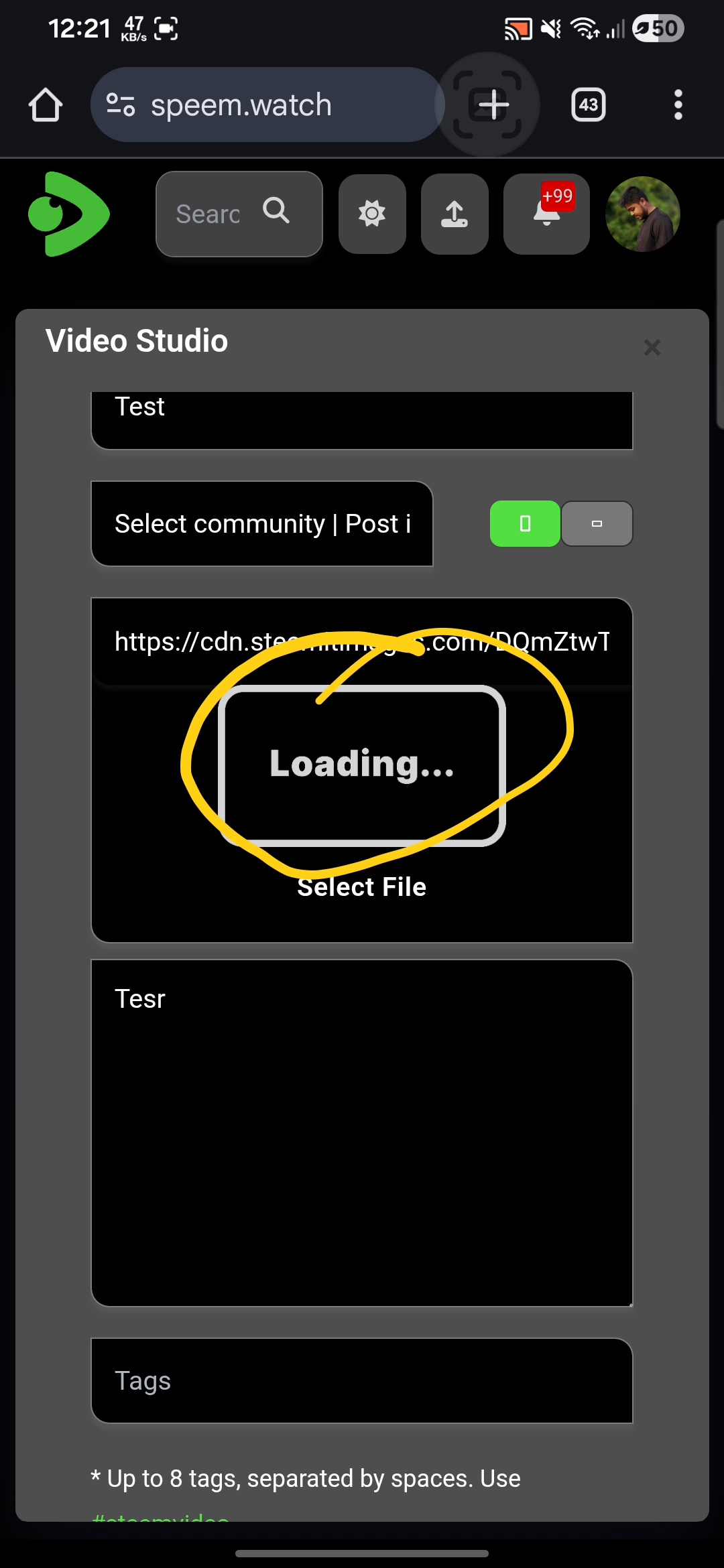
Video Will started to upload. When it is 100% you will see that video upload success. Then tap next. In details option you will that title, community, thumbnail, description & tag. Fill it up then tap next.
 |  |
|---|
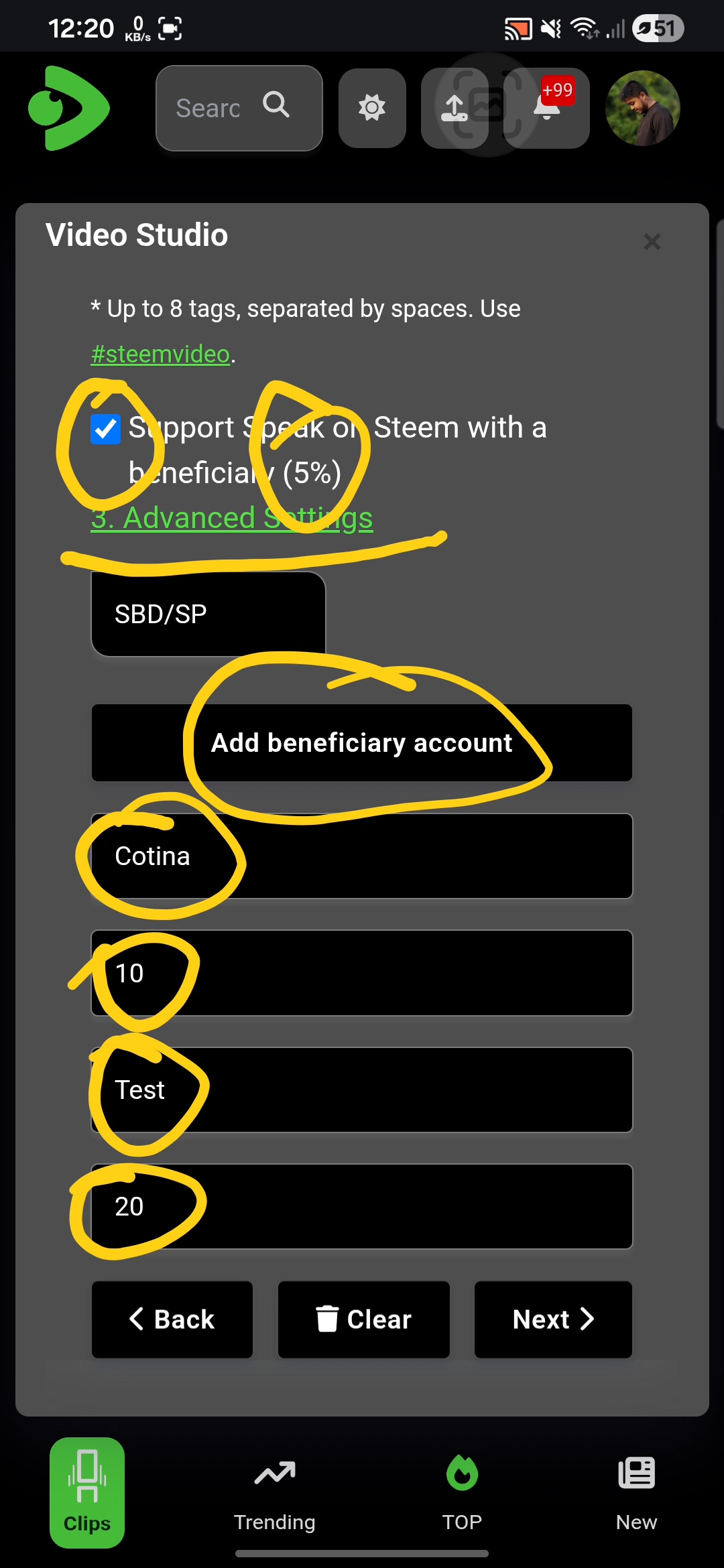
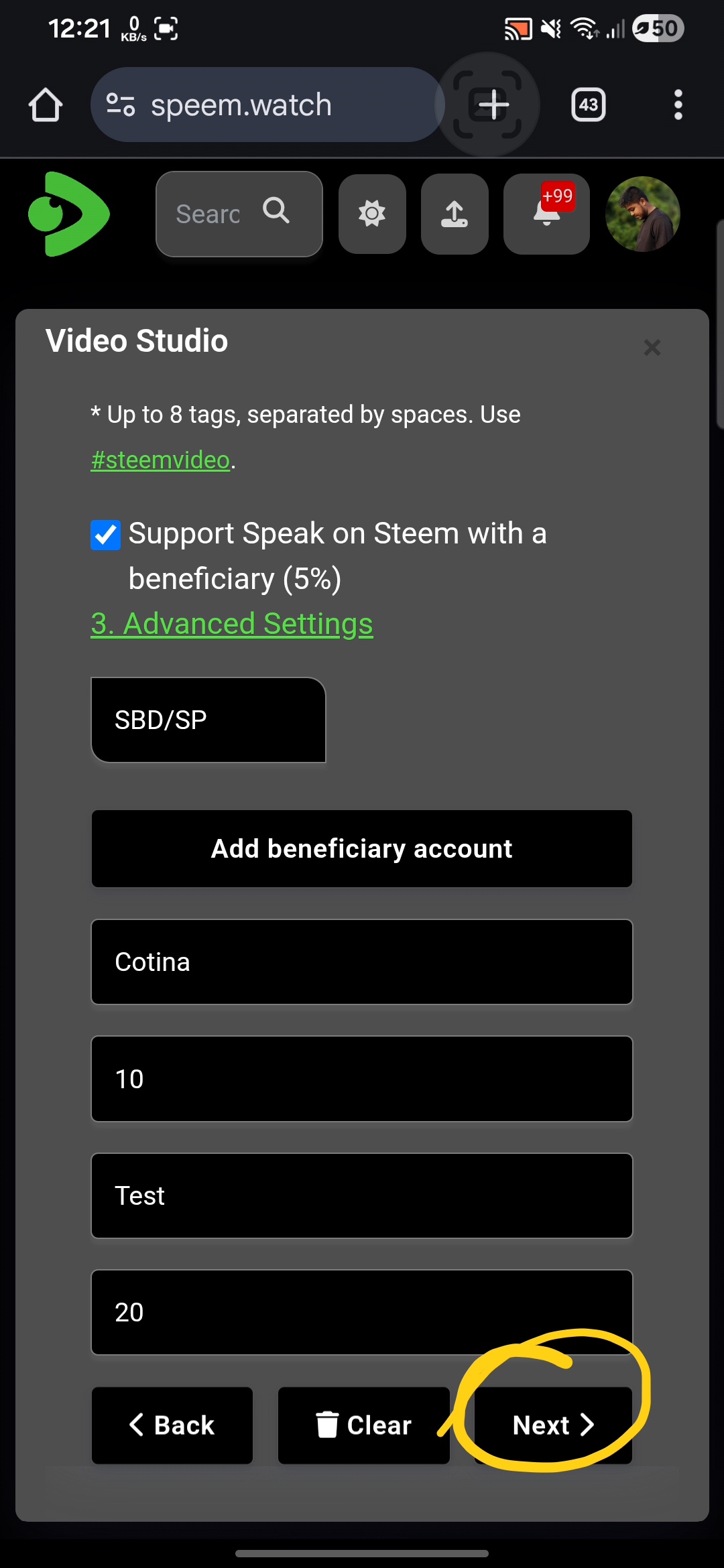
Here is the beneficiary option. You Can set custom beneficiary accounts as you like. Also automatically set 5% to @ speem.
 |  |
|---|
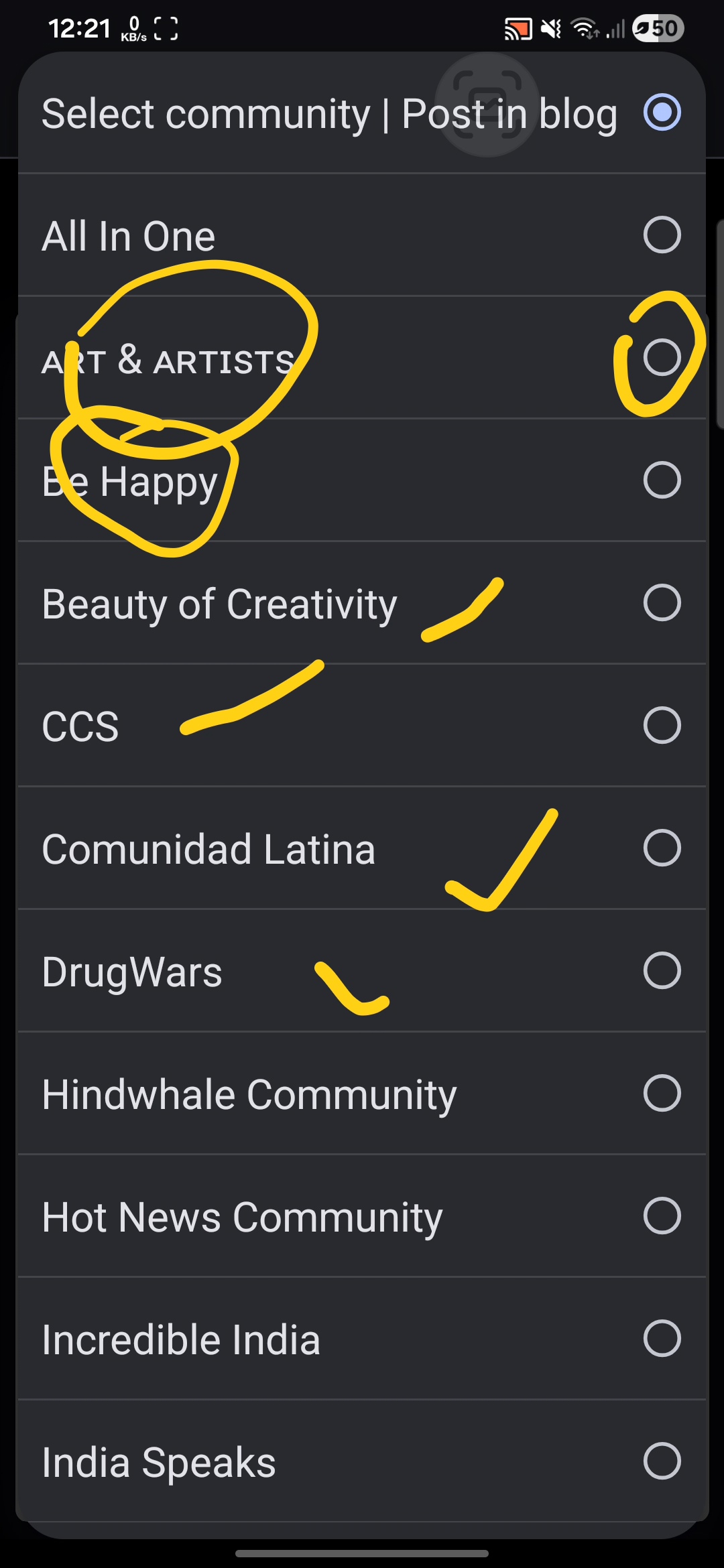
In community you can select Your favorite community. Then tap next.
 |  |
|---|
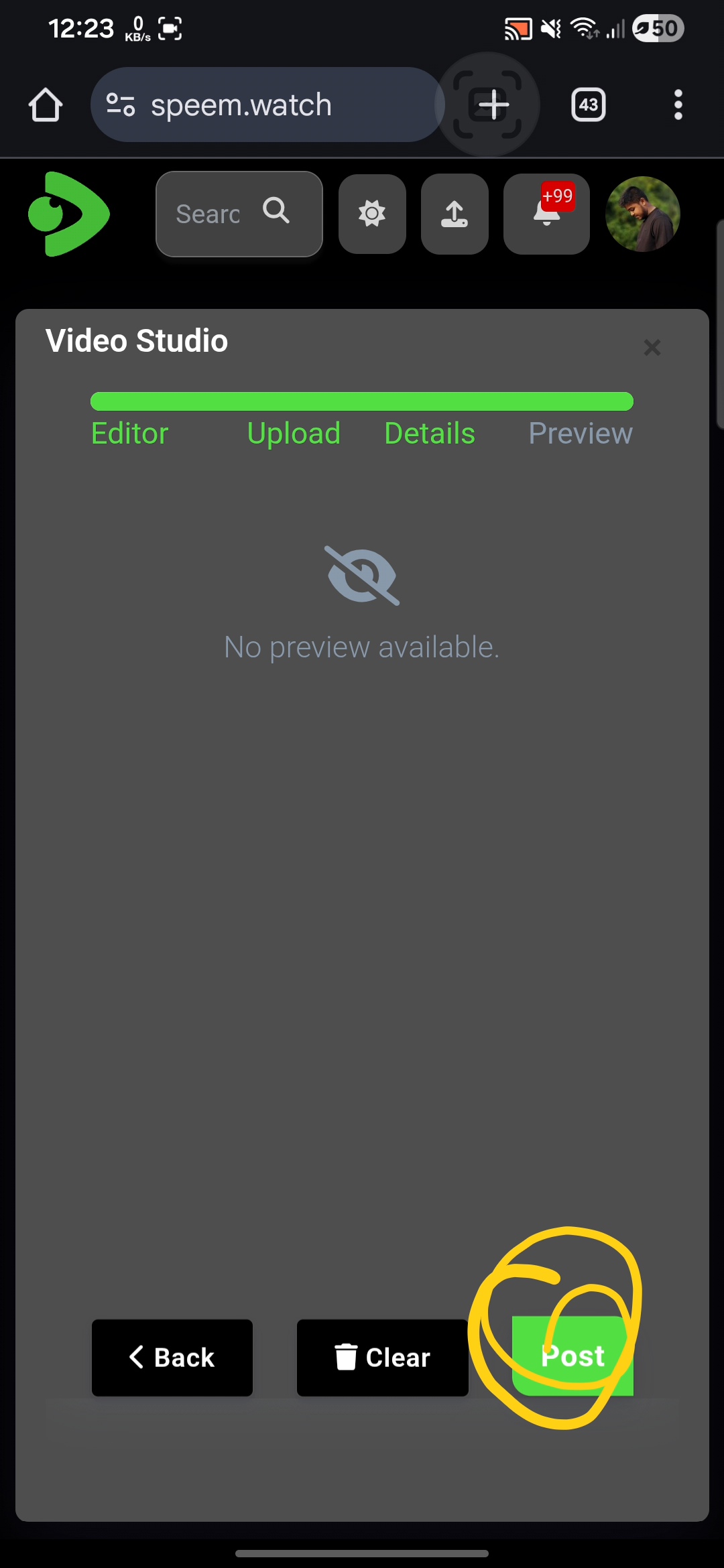
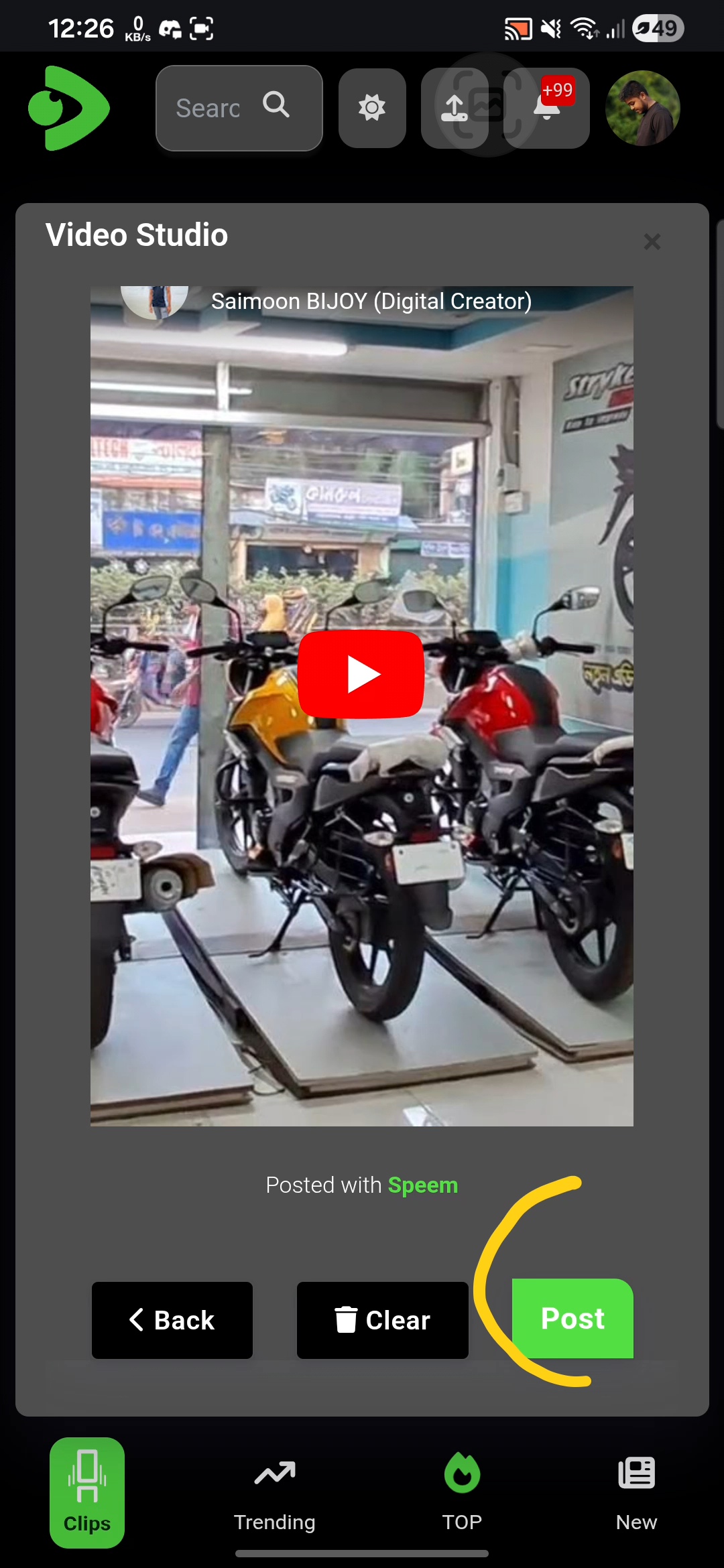
At last preview will appear. Then see the preview & simply hit the post button. It Will be posted.
The END
Here is the Spanish and Bangla languages translaion.
🇪🇸 Español
He estado compartiendo videos durante mucho tiempo y aquí estoy a cargo del equipo de video watch, como resultado de lo cual muchas personas me envían mensajes en diferentes momentos sobre cómo subir videos y muchas personas están enfrentando muchos tipos de problemas, por lo que hoy he compartido con ustedes cómo subir videos de una manera muy simple. Aquí les he mostrado cómo subir directamente y cómo subir desde YouTube a través de imágenes en el tutorial y el video al final. Espero que después de ver esto, entiendan todo muy fácilmente.
| |
|---|
Simplemente escriba en Google o haga clic en este enlace
| |
|---|
Ingrese su nombre de usuario y clave de publicación/contraseña. Luego, en el botón de carga superior, haga clic aquí.
| |
|---|
Seleccione carga directa y luego siguiente. Luego toque allí y seleccione un video desde su dispositivo.
| |
|---|
El video comenzará a subirse. Cuando esté al 100% verá que la carga del video fue exitosa. Luego toque siguiente. En la opción de detalles verá el título, comunidad, miniatura, descripción y etiqueta. Complételo y luego toque siguiente.
| |
|---|
Aquí está la opción de beneficiario. Puede establecer cuentas beneficiarias personalizadas como desee. También se establece automáticamente un 5% para @ speem.
| |
|---|
En comunidad puede seleccionar su comunidad favorita. Luego toque siguiente.
| |
|---|
Al final aparecerá la vista previa. Luego vea la vista previa y simplemente presione el botón publicar. Se publicará.
Gracias.
🇧🇩 বাংলা
আমি অনেক দিন ধরে ভিডিও শেয়ার করে আসছি এবং এখানে আমি ভিডিও ওয়াচ টিমের দায়িত্বে আছি, যার ফলে অনেক মানুষ বিভিন্ন সময়ে আমাকে মেসেজ করে কীভাবে ভিডিও আপলোড করতে হয় এবং অনেক মানুষ বিভিন্ন ধরনের সমস্যার মুখোমুখি হচ্ছে, তাই আজ আমি আপনাদের সাথে খুব সহজভাবে কীভাবে ভিডিও আপলোড করতে হয় তা শেয়ার করেছি। এখানে আমি টিউটোরিয়াল ও একদম নিচের ভিডিওতে ছবির মাধ্যমে দেখিয়েছি কীভাবে সরাসরি আপলোড করতে হয় এবং কীভাবে ইউটিউব থেকে আপলোড করতে হয়। আশা করি এটি দেখার পর আপনারা খুব সহজেই সবকিছু বুঝতে পারবেন।
| |
|---|
গুগলে শুধু টাইপ করুন অথবা এই লিংকটিতে ক্লিক করুন
| |
|---|
আপনার ইউজারনেম ও পোস্টিং কী/পাসওয়ার্ড দিন। তারপর উপরের আপলোড বাটনে এখানে ক্লিক করুন।
| |
|---|
ডাইরেক্ট আপলোড সিলেক্ট করুন এবং তারপর নেক্সট দিন। এরপর সেখানে ট্যাপ করে আপনার ডিভাইস থেকে একটি ভিডিও সিলেক্ট করুন।
| |
|---|
ভিডিও আপলোড হওয়া শুরু হবে। যখন এটি ১০০% হবে তখন আপনি দেখবেন ভিডিও আপলোড সফল হয়েছে। এরপর নেক্সট ট্যাপ করুন। ডিটেইলস অপশনে আপনি টাইটেল, কমিউনিটি, থাম্বনেইল, ডিসক্রিপশন ও ট্যাগ দেখতে পাবেন। এগুলো পূরণ করে নেক্সট ট্যাপ করুন।
| |
|---|
এটি হলো বেনিফিশিয়ারি অপশন। আপনি আপনার ইচ্ছামতো কাস্টম বেনিফিশিয়ারি একাউন্ট সেট করতে পারেন। এছাড়াও স্বয়ংক্রিয়ভাবে @ speem এর জন্য ৫% সেট করা থাকে।
| |
|---|
কমিউনিটিতে আপনি আপনার পছন্দের কমিউনিটি সিলেক্ট করতে পারেন। এরপর নেক্সট ট্যাপ করুন।
| |
|---|
সবশেষে প্রিভিউ দেখাবে। এরপর প্রিভিউ দেখে সহজেই পোস্ট বাটনে ক্লিক করুন। পোস্ট হয়ে যাবে।
Cc :
𝙏𝙝𝙖𝙣𝙠 𝙮𝙤𝙪.
Best regards @bijoy1
Here is the YOUTUBE Link
Posted with Speem
বাহ খুব চমৎকারভাবে টিউটোরিয়াল এর মাধ্যমে একটি গুরুত্বপূর্ণ টপিক শেয়ার করেছেন। এটা সকলের জন্য খুবই উপকার হবে। আপনার টপিক ফলো করে সকলে ভিডিও পোস্ট করতে পারবে এবং ডাইরেক্ট আপলোড করতে পারবে। ধন্যবাদ জানাই আপনাকে এত চমৎকার টিউটোরিয়াল পোস্ট শেয়ার করার জন্য ✅
আপনাকেও অনেক ধন্যবাদ।
This will be very helpful for everyone. Thank you for presenting this series of tutorials on posting directly to Speem. 👌🏽
Thank you very much for sharing your valuable comments.
Assalamu Alaikum dear @bijoy1 brother..! You have posted a very nice and effective tutorial. You have presented the entire process of uploading videos on the Speak on Steem platform in a very beautiful and clear step-by-step manner. Which is a very helpful post for both new and old users of this platform. I myself did not know how to upload videos here, but after seeing the clear step-by-step presentation shown in this post, I also learned how to upload videos. Your explanations regarding the use of Direct and External links were especially commendable. Thank you very much for sharing such quality and educational content in the Steem community. I expect better work from you in the future. Thank you very much again brother.🥰
Thank you so much.
¡Hi friend!
#play
Video reviewed by speem videos watcher @luisito01
Thanks to you.
I am very happy to see this post and this post will be very useful. Also, those who do not know much about it yet will be able to learn through this post and they themselves can log in here properly and learn all the rules and regulations of how to work from here. This is a very nice post. We can learn very easily from here. I really liked it.
Thanks for your complement.
Thank you very much brother for sharing such a nice and organized tutorial with us. It will be very helpful for beginners.
Thanks for your complement.
You have shared a very nice tutorial post. You have explained very well what those who are new to our platform and want to work on this video platform should do. You have taught everything very nicely by marking it and holding it in your hands.